Body Camera vs. Smartphone: Do You Need a Separate Camera?
Decide when a phone is sufficient and when a separate wearable camera fits the recording task.
Editorial guidance, not legal advice or a model-specific performance promise. Check the rules and requirements that apply to your location and use.
You may already have the right camera
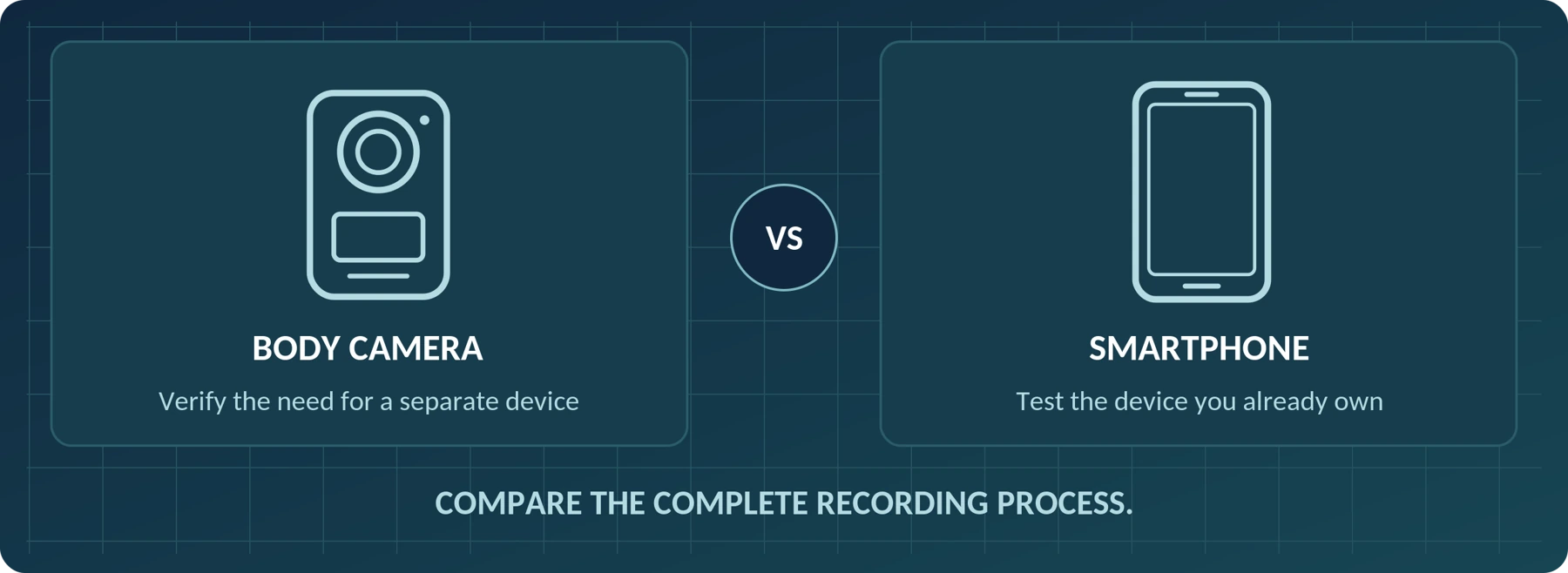
You may not need to buy another camera. For occasional, deliberate recordings that you can comfortably make with your phone, our recommendation is to test the device you already own first.
A separate body camera becomes worth considering when your task calls for sustained hands-free recording, controls you can operate while wearing it, or keeping your phone available for other work. The reason to buy should be a demonstrated need—not the assumption that a dedicated camera always produces better video.
Smartphones can be capable video tools. Apple, for example, documents 4K recording and stabilization options on supported iPhone models. Those capabilities deserve consideration, but they do not answer whether the phone will suit your wearing, recording, and file-handling requirements. [1]
The central question is: “Can my phone complete this recording task without getting in the way of the other things I need it to do?”
This guide helps you decide whether to keep using your phone, test a mounted or spare-phone setup, or evaluate a dedicated body camera.
Click a contents entry to jump to its section. Numbered citations link to the source notes. Device behavior is model-, app- and settings-specific.
Start with the Recording Task, Not the Device Category

Separate two needs that can sound similar:
“I want to record something.” You choose when to begin, aim the camera, and stop after capturing what you need.
“I need a wearable recording process.” You need an appropriately positioned device, dependable activation, enough operating time, and a reliable way to retrieve recordings afterward.
A phone may satisfy either requirement after testing. A body camera should also have to prove that it satisfies your requirements.
Use this framework to identify the questions that matter. It is a purchasing checklist, not a universal specification comparison.
| Requirement | What to check with your smartphone | What to check with a body camera |
|---|---|---|
| Hands-free use | Does the phone, case, and proposed mount stay secure and correctly aimed? | Does the supplied or optional mount work with your actual clothing? |
| Activation | Can you reach the correct camera mode and confirm recording promptly? | Can you operate the controls and recognize recording feedback while wearing it? |
| Other phone tasks | What happens when you need a call, navigation, or another work app? | Can the camera record independently while the phone does those tasks? |
| Required duration | Does the setup finish with enough battery and storage for your other needs? | Does it cover the required period at the intended settings? |
| Usable footage | Are movement, framing, and speech clear in the saved file? | Are those same details usable under comparable conditions? |
| Files and privacy | Where do recordings save, sync, and get shared? | Who can access, export, retain, or delete the footage? |
When Your Existing Phone May Be Enough
Our recommendation is to keep using your phone when the intended task is occasional, the recording method is practical, and your tests show that it meets the requirements.
For example, consider an authorized short demonstration, an agreed inspection walkthrough, or a personal video you deliberately frame. Before buying more equipment, make a representative recording and open the exported file on the device where you will review it.
Ask whether you can safely hold or position the phone, whether interruptions are acceptable, and whether its battery and storage are sufficient. Also decide whether you need your phone for something else during the recording.
You do not need a second camera merely because the task involves documentation rather than entertainment. Equally, a good-looking short clip should not stand in for testing a much longer or hands-free assignment.
When the phone already passes every essential check, “do not buy another device yet” is a valid conclusion.
Can You Wear Your Phone Instead of Holding It?
Consider a phone-and-mount setup as a candidate, not an automatic solution. The ICO’s guidance on portable recording equipment includes mobile phone cameras and describes devices attached to clothing or transport. That establishes the category of use; it does not certify a particular holder as safe or suitable. [14]
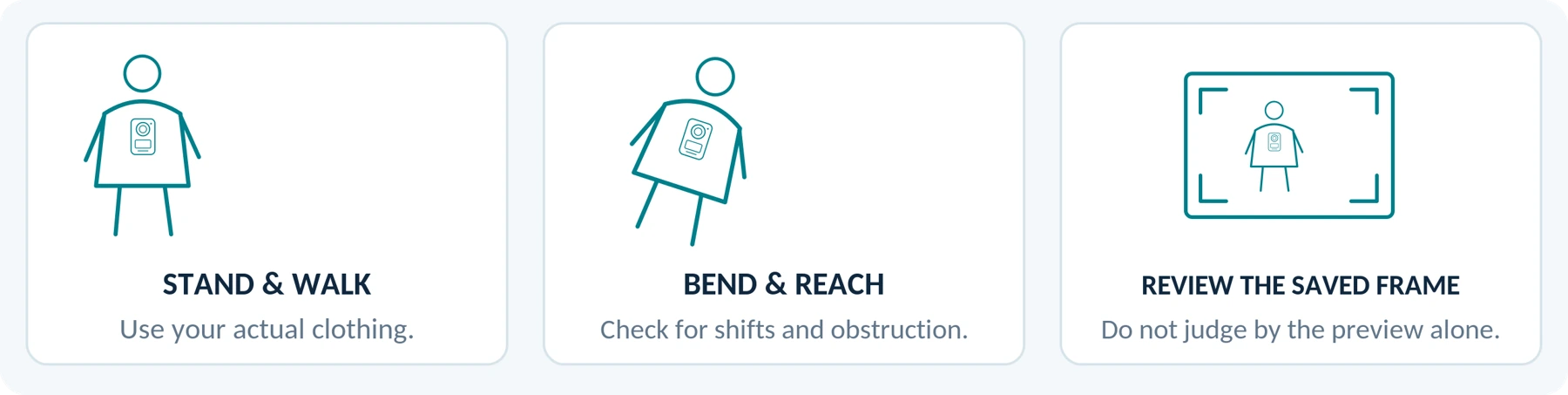
Test the complete arrangement with the clothing you intend to wear. Check the lens, microphone openings, screen access, buttons, and the security of the attachment. Walk, sit, bend, and carry your normal work items in a controlled setting.
Pay attention to framing. An illustrative problem to test is a phone positioned correctly while you stand still but aimed at the floor when you lean forward. Repeat the same test with a body camera rather than assuming its clip solves the issue.
Do not use “hands-free” to mean “needs no attention.” Establish how you will check recording status and notice a loose or obstructed mount.
For a delivery or field-service task, add one practical question: Can I still use my phone when I need it, without dismantling the recording setup?
Which Is Quicker to Start Recording?
Do not assume that a phone always requires a full unlock and several menus. Apple documents access to Camera from the iPhone Lock Screen. Its video guide also describes physical-button recording controls. [2] [1]
A body camera can provide recording feedback intended for use while worn. The AXIS W110 manual, for example, documents vibration, beeps, and a red recording indicator, as well as a separate startup period before the camera is ready. [3]
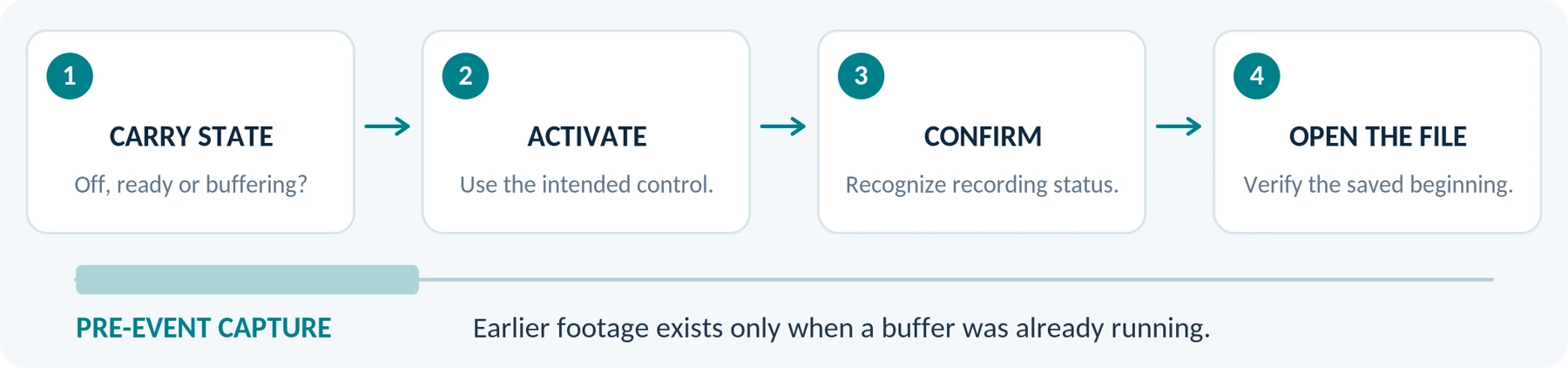
Compare the actual sequence from the state in which you will carry each device. Is it off, ready, or already buffering? Can you find the control without looking down? Is the first saved frame early enough for the task?
Our recommendation is to practice the sequence with disposable test footage. Treat opening the camera, seeing a preview, and saving a recording as separate things to verify.
The useful advantage is reliable activation in your routine—not a claim that one category always starts faster.
Can a Body Camera App Replace a Dedicated Camera?
Evaluate the app's exact behavior, permissions, costs, and supported phone versions. Do not treat the phrase “body camera app” as proof of uninterrupted recording, controlled access, or a particular pre-event buffer.
Where earlier footage matters, require a demonstration of pre-event capture. Axis documents configurable prebuffering, separate buffer-audio settings, and model-dependent limitations in its body-worn system. The same manual notes that starting immediately after power-on can shorten the available buffer. [9]
For either a phone app or a dedicated camera, ask when the buffer starts, what ends it, how much it saves, and whether it includes sound. A device cannot recover earlier footage it never captured.
An app may satisfy your recording requirements, but it does not remove the need to test mounting, power, and the phone's other tasks. Conversely, a dedicated camera without your required feature does not become suitable just because it is sold as a body cam.
Compare the behavior you can demonstrate, not the name of the app or device.
Will Calls, Notifications, or Locking the Phone Stop Recording?
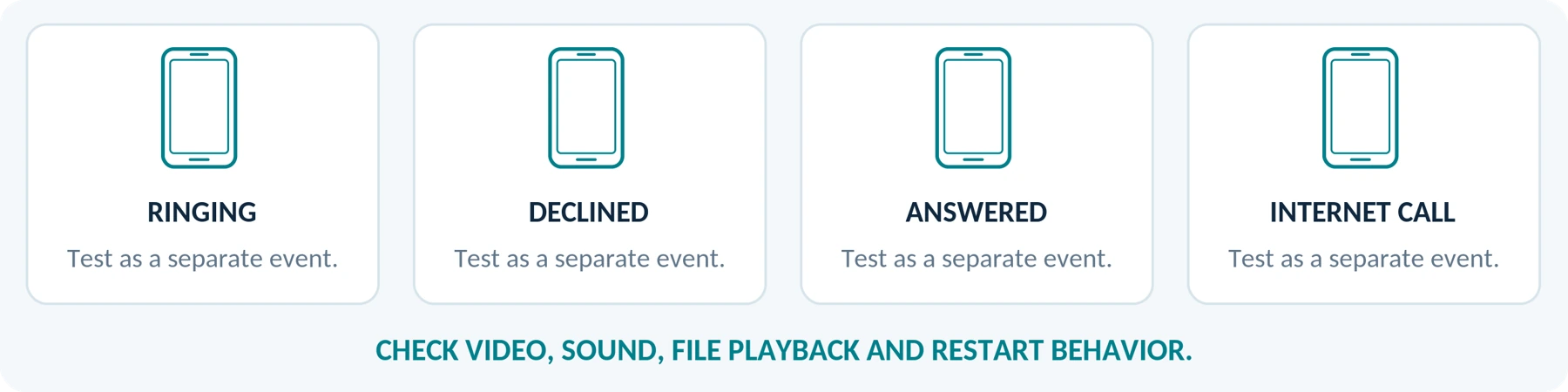
These events deserve separate tests. This section concerns filming your surroundings, not recording telephone conversations.
A Ringing Phone Is Not the Same as an Answered Call
Apple states that video recording in its Camera app is unavailable during a phone or FaceTime call. That is a specific documented restriction. It does not establish what every iPhone configuration does when a call merely rings, or how every Android or third-party camera app behaves. [1]
Before relying on your setup, test an incoming call that you leave unanswered, one that you decline, and one that you answer. Test relevant internet-calling apps separately. Check whether video and sound continue, whether the file remains playable, and whether recording requires a manual restart.
Do not summarize an untested phone as either “calls never affect it” or “any notification stops the video.”
Do Not Disturb Is Not Proof of Uninterrupted Recording
Apple's Focus settings can allow selected callers and repeated calls through, depending on configuration. They are notification controls, not evidence that a particular camera setup will capture an uninterrupted assignment. [5]
Check the rules actually enabled on your phone. Do not disable essential communications simply to make a recording test pass.
When you must remain reachable and record simultaneously, evaluate a camera that records independently of the phone. Verify that independence for the exact model; do not rely on an unconfirmed companion-app connection.
Trial record: phone model / operating-system version / camera-app version / settings. Use disposable recordings; never place real emergency calls for a test.
Lock-Screen Access Is Not a Screen-Off Recording Test

Starting from the Lock Screen Is Different from Recording with the Screen Off
Apple documents both opening Camera from the Lock Screen and moving the recording control into a hands-free lock position. Those are different operations from pressing the phone's side button to lock the device during a recording. [2] [1]
Test the exact screen behavior you need rather than interpreting the word “lock” as a promise of screen-off recording.
On Android, documented mechanisms allow appropriately implemented apps to continue camera or microphone capture in the background, subject to permissions and service restrictions. That is not a guarantee that your chosen app implements them or supports your particular sequence of actions. [4]
Use the following questions for your trial:
| Event to test | What to check in the saved result |
|---|---|
| An incoming call rings | Is the surrounding-scene video and audio continuous? |
| You answer a call | What stops or changes, and how do you resume the intended recording? |
| You open another work app | Does capture continue, pause, or end? |
| You lock the phone or let the display change state | What is actually saved—not just shown in the preview? |
| You return to the camera | Has recording resumed, or is the app only displaying a live view? |
These are test prompts, not universal predictions. Record the phone model, operating-system version, app version, and settings with the results.
Battery Life: Keep Enough Power for the Rest of Your Day
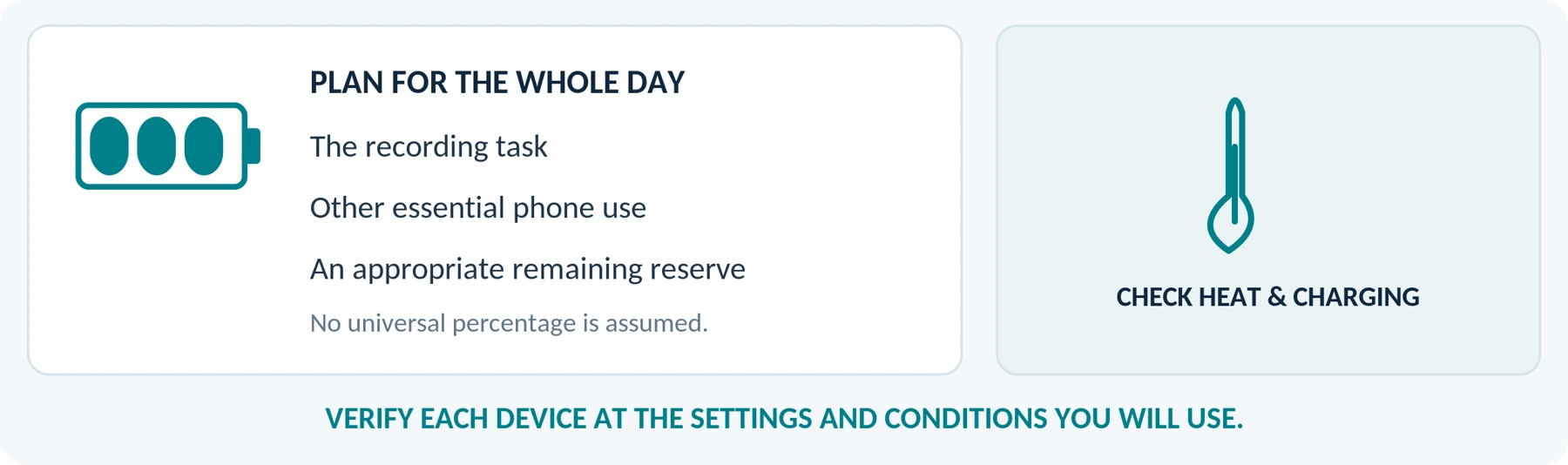
Define two requirements for your phone: the recording period it must complete and the power it must retain for other tasks afterward.
For example, finishing an authorized walkthrough is not a satisfactory result when it leaves insufficient power for the communications you still need. Set an acceptable remaining-battery target based on your routine; this guide does not prescribe a universal percentage.
Do not use a phone's advertised video-playback figure as your recording acceptance test. Measure the intended capture setup instead.
A separate camera does not automatically last longer. Axis identifies battery capacity, storage, wireless activity, temperature, resolution, and stabilization as relevant to the W110's operating time. Treat a body camera's runtime as a model-and-settings question too. [3]
Heat and Charging Need Attention on Both Setups
Apple warns that high temperatures can slow or stop charging and temporarily disable camera features. Google says an overheated Pixel may limit performance or turn off its camera, and identifies high-definition recording and charging among activities associated with warmth. [6] [7]
These warnings do not mean phones always overheat while filming. They mean you should test representative conditions and follow the manufacturer's limits.
Do not assume a power bank fixes a thermal or recording-duration problem. For either device, confirm the permitted power arrangement, keep the setup within operating limits, and stop a test when a warning or unsafe condition appears.
Recording-duration planning notes
| Define before the test | Your requirement |
|---|---|
| Required recording period | Not specified |
| Other essential phone tasks | Not specified |
| Acceptable remaining power / margin | Not specified |
Does a Body Camera Record Better Video or Audio Than a Phone?
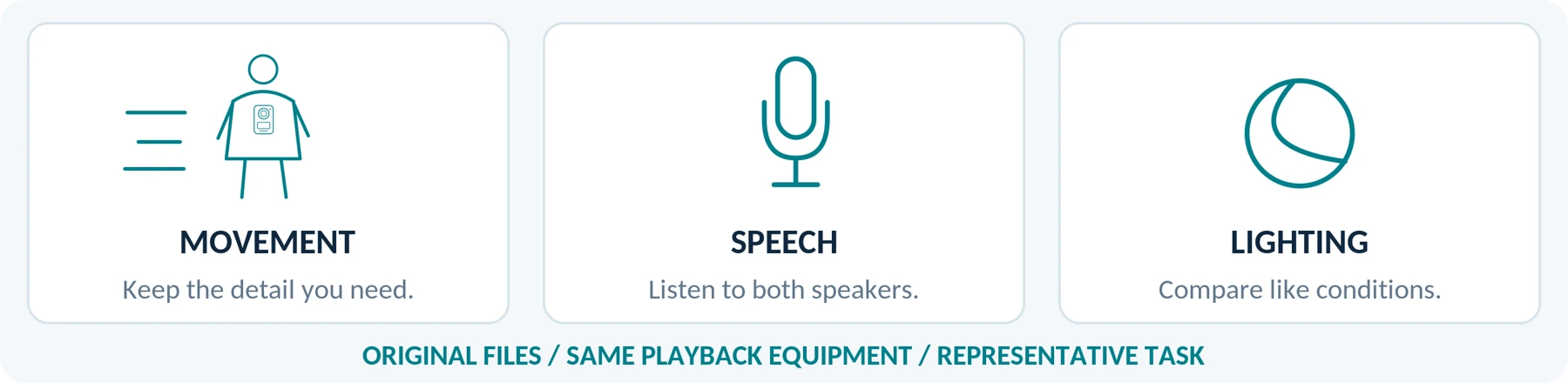
Do not assume it does. Compare usable recordings from the actual devices, rather than assigning a picture-quality winner to the category name.
Request or create permitted sample footage that includes a moving person, normal conversation, and the lighting transitions relevant to your use. Inspect both files on the same playback equipment.
A scene can look sharp while stationary but lose moving detail when exposure is too slow. Axis explains this motion-blur problem in its image-quality guidance. A static sample alone is therefore not a useful substitute for your movement test. [8]
For night work, ask which recording mode and illumination method each model uses. Require a sample from comparable lighting; do not treat a product-page night image as proof of usable nighttime video.
For audio, test both your voice and another consenting speaker. Listen for intelligibility at normal distances and check the effect of your clothing and mount. Ask whether audio can be disabled independently when your use requires it; the ICO identifies separate audio and video control as a procurement consideration in its UK organizational guidance. [13]
A phone can pass the image test and fail the wearing test. A body camera can pass the wearing test and fail the image test. Neither result should be ignored.
Use the same test conditions
| Condition to record | Phone trial | Camera trial |
|---|---|---|
| Lighting and movement | Not specified | Not specified |
| Speaker distance / noise | Not specified | Not specified |
| Saved detail and speech | Not specified | Not specified |
Where Will the Recordings Go—and Are They Really Backed Up?
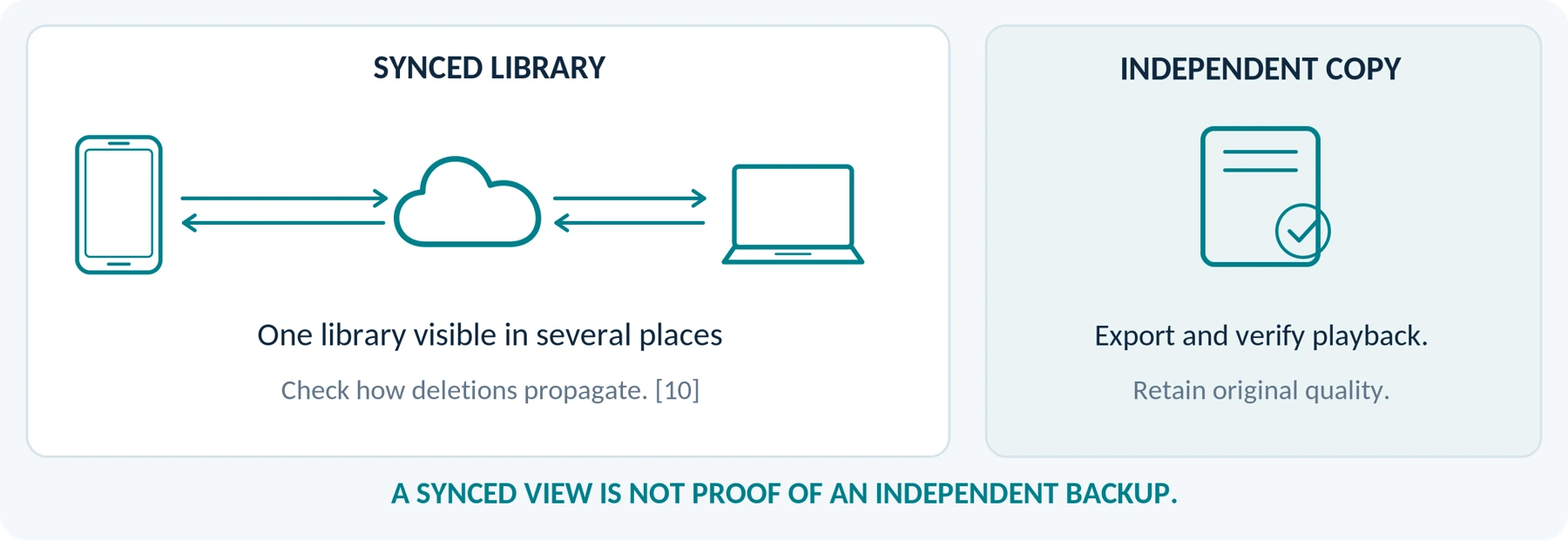
Map the path of a test file before using either setup for important recordings:
Capture → save → transfer or sync → verify playback → keep the required backup.
For a phone, check whether recordings enter your personal photo library, a work app, a shared album, or a cloud account. Confirm who can access the destination and whether it is appropriate for the intended footage.
Cloud Sync Is Not the Same as an Independent Backup
Apple explains that deleting a photo or video on one device deletes it everywhere using iCloud Photos. It also says that iCloud Photos content is not duplicated in the separate iCloud device backup, and recommends keeping backup copies of the library. [10]
Do not count the same synchronized recording visible on several screens as several independent backups. For important footage, arrange a verified copy in the approved location and check the deletion behavior using disposable files—not your only original.
Check Whether the Copy Preserves the Original Quality
Google Photos distinguishes Original quality from Storage saver. Its guidance says Storage saver reduces videos above 1080p to 1080p, while noting that some items may remain uncompressed. Check the actual backup setting and the exported result. [11]
For incident documentation, our recommendation is to preserve the original capture or original-quality export and any required accompanying records. Make separate copies for trimming, annotations, or sharing.
Apply the same discipline to a body camera. Establish how files leave the device, who manages them, and what happens after storage fills or an account ends. A dedicated device is not a backup plan by itself.
Should Employees Use Their Personal Phones for Work Recording?
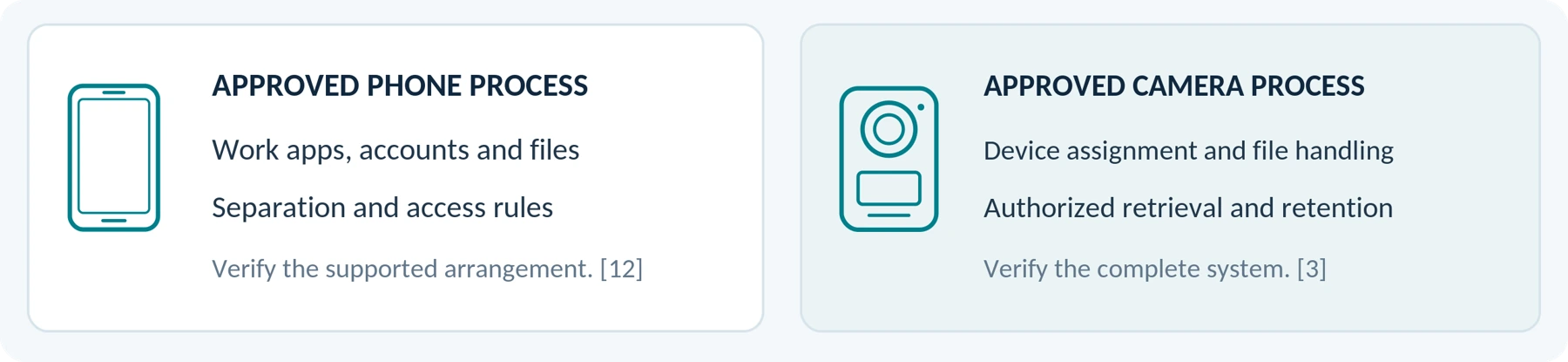
Treat this as an organizational decision before treating it as a camera comparison.
Ask where work footage may be stored, who can retrieve it, what happens when an employee leaves, and how personal content stays separate. Have the responsible manager or IT team define the approved arrangement before staff begin recording.
Do not assume phones are inherently unsuitable for managed work. Android Work Profile can separate work apps and data from personal apps and data when the organization supports that setup. This is a management capability—not automatic certification of every recording app or use. [12]
Managed body-camera systems are another option. The AXIS W110 documentation describes camera assignment and docking to charge, upload files, and synchronize settings. Those functions belong to the documented system, not to every stand-alone body camera. [3]
Compare an approved phone-based process with an approved camera-based process. “Employees can send us the videos later” should not be the entire plan.
Recording Rules Still Apply to the Intended Use
A phone is not a shortcut around workplace recording requirements. The ICO's UK organizational guidance explicitly includes mobile phone cameras among portable recording technologies and addresses security, governance, and privacy assessment. Its body-worn guidance also addresses notices and retention arrangements. [14] [13]
Before use, check the applicable rules for your country, state, workplace, and circumstances, including whether audio is appropriate. Do not interpret an employer's approval as a substitute for applicable law.
This article does not determine the legality of a particular recording or its admissibility in court. Obtain qualified local advice for those questions. Prioritize personal safety over obtaining footage; do not prolong a confrontation to make a recording.
Keep Your Phone, Repurpose a Spare, or Buy a Body Camera?
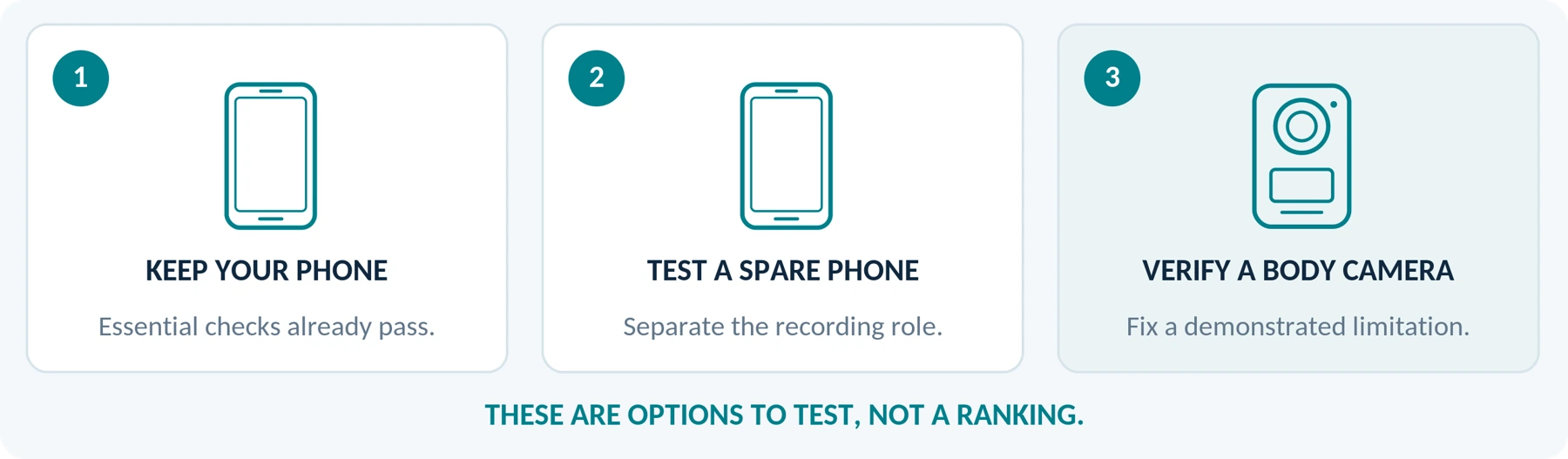
There are three options worth evaluating.
Keep your current phone when it meets the recording task without unacceptable compromises. Count only additional equipment and services needed for this use; do not make a separate camera look cheaper by charging the full historical cost of a phone you already own against a new project.
Test a spare phone when separating recording from your main phone is the real requirement. Confirm battery condition, supported software, storage, mounting, and export. Plan how you will manage accounts and communications on that spare device. Reusing existing hardware is an option to validate—not proof of a reliable low-cost solution.
Buy a dedicated body camera when it removes a limitation that matters: an unsuitable mount, an unworkable activation sequence, conflict with essential phone use, or an unmet file-management requirement. Require the proposed model to demonstrate the improvement.
For all three options, include necessary mounts, charging, storage, software, backup, and handling time. Do not assume recurring charges are either present or absent; confirm the complete setup. The companion A02 subscription guide and A03 budget guide cover those checks in detail.
Buying two devices is not automatically wasteful, and using one device is not automatically economical. Compare the complete arrangements that actually meet your needs.
Compare only the additional costs for this task
Record required mounts, charging, storage, software, backup and handling time. Keep required purchases separate from optional extras and unresolved items.
Related reading: A02 covers subscription and service charges. A03 covers the cost of a complete, ready-to-use setup. Confirm the actual quote before making a purchase.
A Practical Test Before You Buy
Use permitted locations and consenting participants. The following is a suggested acceptance test, not a report of tests performed for this article.
First, write down your essential requirements: recording duration, usable detail and sound, clothing and mounting position, other phone tasks, and file destination. Define what an acceptable result looks like before trying a device.
Then test these six areas:
| Test | What to do | What counts as a useful result |
|---|---|---|
| Wear and operate | Use the actual clothing and mount; move normally and activate recording. | You can operate it and keep the intended scene in view. |
| Use the phone normally | Stage relevant calls, app changes, and screen-state changes safely. | You understand any interruption, and the result meets your continuity requirement. |
| Review moving video and speech | Record a consenting participant in representative lighting and noise. | The saved file contains the detail and conversation you need. |
| Complete the intended duration | Run the chosen mode within operating limits. | The recording is complete, with acceptable remaining power and storage. |
| Retrieve and preserve | Export the relevant file and verify an approved backup. | The correct people can open the required files without relying on a preview or link alone. |
| Compare the additional purchase | Repeat failed checks with the proposed replacement. | The replacement fixes the important limitation without introducing another unacceptable one. |
Use Pass, Fail, or Unverified for each essential requirement. A short trial that succeeds does not establish reliability for a full shift; run the required-duration test separately.
Recheck relevant behavior after substantial operating-system, camera-app, firmware, or configuration changes. Do not deliberately overheat equipment, defeat privacy controls, place real emergency calls, or create confrontations to test recording.
Keep the Phone When It Is Enough
Turn the Results into a Decision
Keep the phone when it passes the essential checks and you have no clear reason to add equipment.
Change the setup and retest when a suitable mount, approved app configuration, or file-handling adjustment may solve the issue.
Consider a dedicated camera when the phone still fails an important requirement and a tested camera-based setup meets it.
Do not turn these outcomes into a numerical score that lets several optional features outweigh one failed essential requirement.
The Bottom Line
You do not need a body camera simply because you own a smartphone and sometimes record video.
Our recommendation is to start with the recording task, test your current phone, and identify any limitation that genuinely matters. A dedicated device earns its place when it improves your ability to wear, activate, complete, retrieve, and appropriately manage the recording—not merely because it has a different product label.
Keep the phone when it is enough. Buy a separate camera when the complete setup solves a verified problem.
When asking about a SpikeCam model, include your intended use, required recording period, clothing and mount, typical lighting, and the phone tasks you must perform during recording. Ask how that exact camera operates and exports files; do not assume it includes functions described in other manufacturers' examples.
Your comparison worksheet
Use Pass, Fail or Unverified. Keep the phone/app/OS or camera/firmware version with the trial record.
| Essential requirement | Current phone | Proposed setup |
|---|---|---|
| Wear and operate | Not specified | Not specified |
| Required phone tasks | Not specified | Not specified |
| Recording duration / power | Not specified | Not specified |
| Usable video and speech | Not specified | Not specified |
| Retrieve and preserve files | Not specified | Not specified |
References and Editorial Scope
Source review date carried forward from the article manuscript: September 22, 2026. This illustrated edition preserves its model-specific qualifications and reference links.
[1] Apple Support — Record a video with your iPhone camera support.apple.com | Article access date: September 22, 2026
[2] Apple Support — Access features from the iPhone Lock Screen support.apple.com | Article access date: September 22, 2026
[3] Axis — AXIS W110 Body Worn Camera user manual help.axis.com | Article access date: September 22, 2026
[4] Android Developers — Foreground service types: Camera and Microphone developer.android.com | Article access date: September 22, 2026
[5] Apple Support — Allow or silence notifications for a Focus on iPhone support.apple.com | Article access date: September 22, 2026
[6] Apple Support — If your iPhone or iPad gets too hot or too cold support.apple.com | Article access date: September 22, 2026
[7] Google Pixel Phone Help — Help keep your Pixel phone from feeling too warm or hot support.google.com | Article access date: September 22, 2026
[8] Axis — Troubleshooting guide for image quality help.axis.com | Article access date: September 22, 2026
[9] Axis — Body worn solution user manual help.axis.com | Article access date: September 22, 2026
[10] Apple Support — Set up and use iCloud Photos support.apple.com | Article access date: September 22, 2026
[11] Google Photos Help — Choose the backup quality of your photos and videos support.google.com | Article access date: September 22, 2026
[12] Android Enterprise Help — What is an Android Work Profile? support.google.com | Article access date: September 22, 2026
[13] UK Information Commissioner's Office — Body Worn Video (BWV) ico.org.uk | Article access date: September 22, 2026
[14] UK Information Commissioner's Office — Action cameras and other portable surveillance technologies ico.org.uk | Article access date: September 22, 2026
Editorial scope
Sources checked September 22, 2026. Named products and services illustrate documented capabilities or limitations, not rankings or hands-on comparison results. Phone behavior must be checked for the actual model, operating-system version, camera app, and settings. The test procedure is proposed, not a published performance result. No unverified feature has been assigned to SpikeCam. ICO material concerns UK organizational use and was marked as under review when checked. [13] [14]
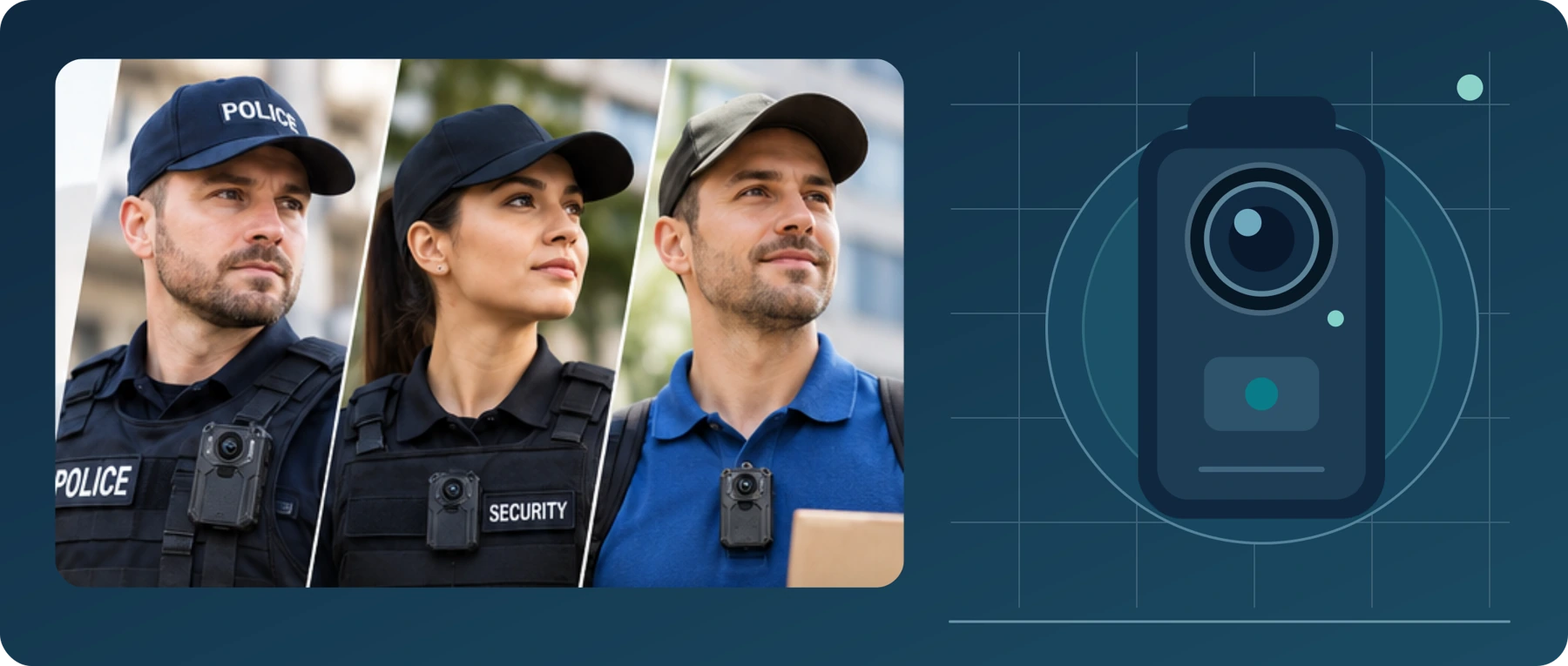
Figures are conceptual illustrations and proposed test aids, not product photographs, performance measurements or a statement of SpikeCam specifications. The supplementary worksheets can be filled in and edited in Word.
Related articles
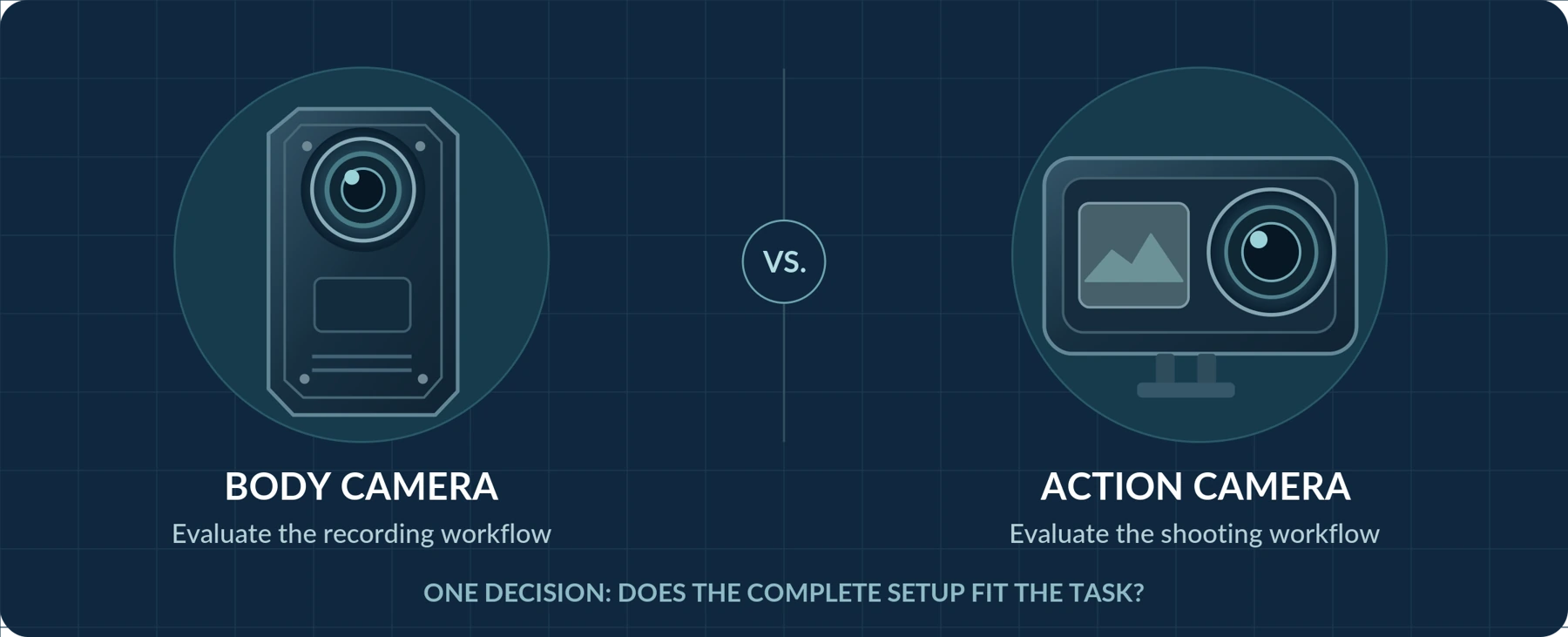
Body Camera vs. Action Camera: Which Should You Choose?
Compare everyday recording, controls, mounting and file handling before choosing a camera.
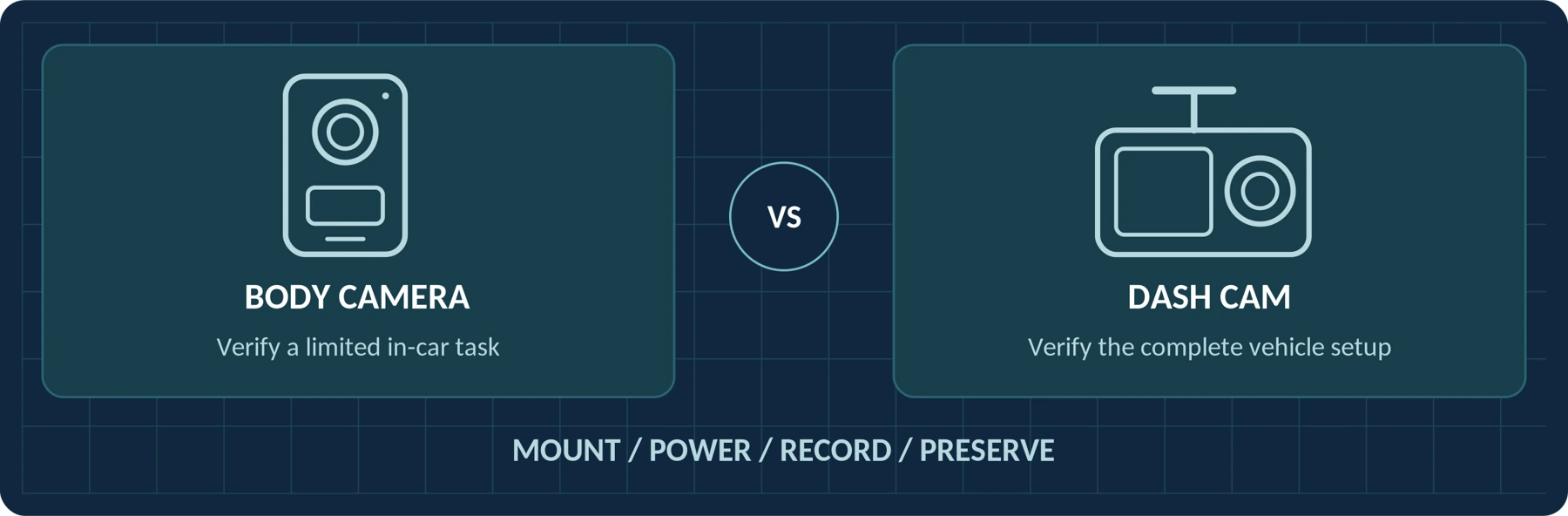
Body Camera vs. Dash Cam: Can a Body Camera Replace a Dash Cam?
Compare road coverage, mounting, power and cabin recording before using a body camera in a vehicle.
Body Camera Buying Guide: How to Choose the Right One
Choose a camera around recording controls, battery life, file access and your actual working routine.