Body Camera vs. Dash Cam: Can a Body Camera Replace a Dash Cam?
Compare road coverage, mounting, power and cabin recording before using a body camera in a vehicle.
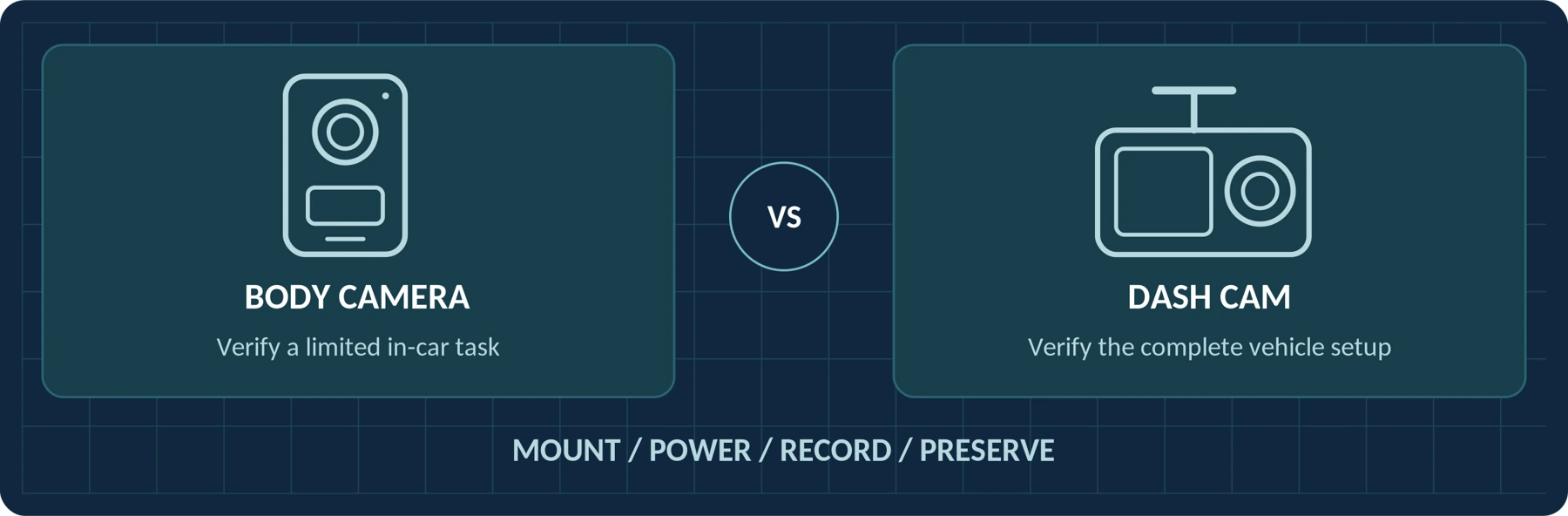
Editorial guidance, not legal advice or a model-specific performance promise. Check the rules and requirements that apply to your location and use.
A limited task is not a complete replacement
Yes—a suitable body camera can be used for a limited in-car recording task. But being able to record from inside a car is not the same as providing a dependable, permanently installed dash-cam setup.
Some body cameras are offered with vehicle-mounting options. BOBLOV's M5, for example, lists variants with a windshield suction mount. That establishes an intended mounting option, not proof that every required driving or parking function is supported. [1]
For occasional, manually started recording, test the body camera you already own. For routine automatic journey recording or unattended parking coverage, our recommendation is to begin with a purpose-built dash-cam setup. Either option must meet your actual requirements.
This guide explains what to check before treating one device as a replacement for the other: the view, power, startup, recording continuity, heat limits, parking behavior, and access to the saved files.
Click a contents entry to jump to its section. Numbered citations link to the source notes. All equipment and vehicle behavior must be checked for the exact setup.
First, Decide What “Replace a Dash Cam” Means
There are three different proposals to evaluate.
Wearing a body camera while driving means the lens remains attached to you. Mounting a body camera inside the vehicle gives it a fixed position. Installing a dedicated dash cam means evaluating a camera and its vehicle-specific power, mounting, and recording arrangements together.
Do not treat those proposals as equivalent simply because each can produce a video.
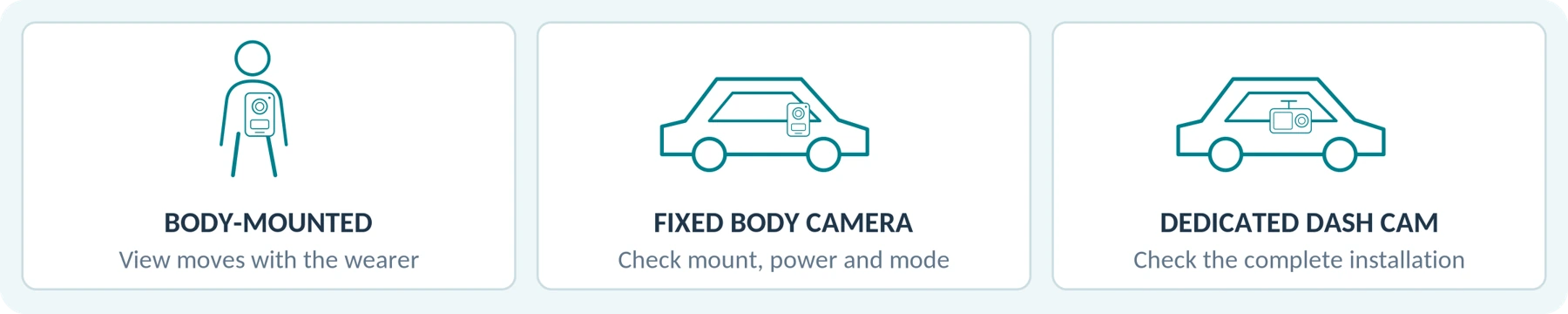
Use this planning framework to define the job. These are editorial recommendations, not universal claims about either category.
| Intended use | Where to start | What must be established |
|---|---|---|
| Occasional recording of a planned journey | Evaluate an existing camera with a suitable, permitted mount. | Safe placement, sufficient power and storage, usable footage, and reliable manual operation. |
| Automatic recording on everyday trips | Evaluate a dedicated dash cam or a documented vehicle-capable alternative. | The complete start, record, save, and restart sequence without routine driver intervention. |
| Recording while the vehicle is parked | Evaluate a supported parking-recording system. | Its power source, trigger behavior, coverage, operating limits, and stopping conditions. |
| Recording both driving and authorized activity outside the car | Compare transferring one camera with using two separate devices. | Whether either task loses necessary coverage during the handover. |
A successful short journey does not establish that the same camera is suitable for overnight parking or permanent installation.
Will a Camera on Your Chest Capture the Road?
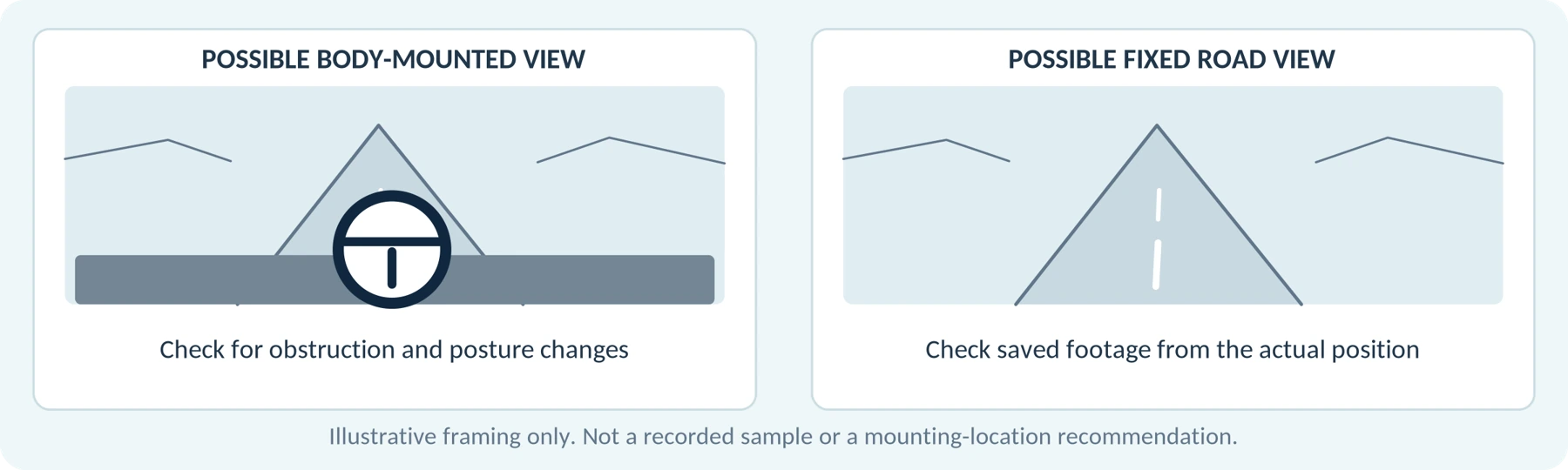
Start by checking the actual view from your normal seated position. With the vehicle safely parked, fasten your seat belt normally and review a test recording. Does it show the road, or mainly the steering wheel, dashboard, your hands, or the cabin?
Repeat the check with normal changes in posture. A body-mounted lens moves with your torso, so do not assume that a useful view while standing remains useful behind the wheel.
This is a framing problem, not a resolution problem. A sharper image of the dashboard does not provide the missing road view.
For a fixed installation, use a mount intended for the camera and permitted location. Check that it holds the complete device securely without blocking the driver's sightline. Follow the vehicle manufacturer's guidance on airbags, trim, and cable routing; never change seat-belt positioning to improve the camera angle.
Set up and adjust the equipment only when safely parked. UK government guidance, for example, says mounted devices must not obstruct the road view and drivers must remain in control. Check the relevant requirements for your own location rather than applying that guidance as a worldwide rule. [2]
Front, Rear, and Cabin Coverage Are Separate Requirements
Draw the views you need: the road ahead, traffic behind, and any authorized cabin recording. Then map each view to an actual camera position.
One forward-facing lens should not be counted as a separate rear view. Nor should turning a camera toward the passengers be counted as simultaneous road and cabin coverage.
For any multi-camera proposal, ask to see the files from every required channel recorded at the same time. Check the complete configuration—not only the front-camera sample.
Will the Footage Be Useful Through a Windshield?
Evaluate recordings made through the actual glass, in the intended position. Start with a clean windshield and check for dashboard reflections and glare. Nextbase's night-recording guidance recommends cleaning the glass on both sides and reviewing the camera angle. [3]
Inspect saved footage rather than relying on the preview screen. Consider lane position, traffic signals, nearby vehicles, and the sequence of events. Where readable registration plates matter, include representative moving subjects and distances in a safe test.
Do not treat “4K” as a guarantee of readable plates. Axis explains that a scene can look sharp while stationary but show blurred moving details when the shutter speed is too slow. [4]
![Conceptual light paths, not a performance comparison. Infrared reflections and visible-light scene quality require separate checks. [^3] [^4]](https://spikecam.com/wp-content/uploads/spikecam-knowledge/a06/figure-04.webp)
Infrared Night Vision Is Not Automatically an Advantage Through Glass
Built-in infrared illumination can reflect from nearby windows and degrade the image. Axis explicitly warns against directing infrared light toward reflective surfaces such as windows. For a body camera behind a windshield, that makes nighttime testing essential. [4]
When the manufacturer permits it, compare the outside view with the infrared illuminator disabled. Do not assume that disabling it will make an otherwise unsuitable low-light camera perform well.
Separate exterior recording from cabin recording. Nextbase describes visible-light recording for its front and rear cameras, while identifying infrared illumination for the cabin camera on its iQ models. That is a documented design choice—not proof that every dash cam or body camera behaves the same way. [3]
Test the light reaching the lens, not just the “night vision” label.
Will It Start Recording When You Start the Car?
Write down the sequence you expect:
Vehicle supplies power → camera starts → recording begins → the journey is saved → recording resumes on the next trip.
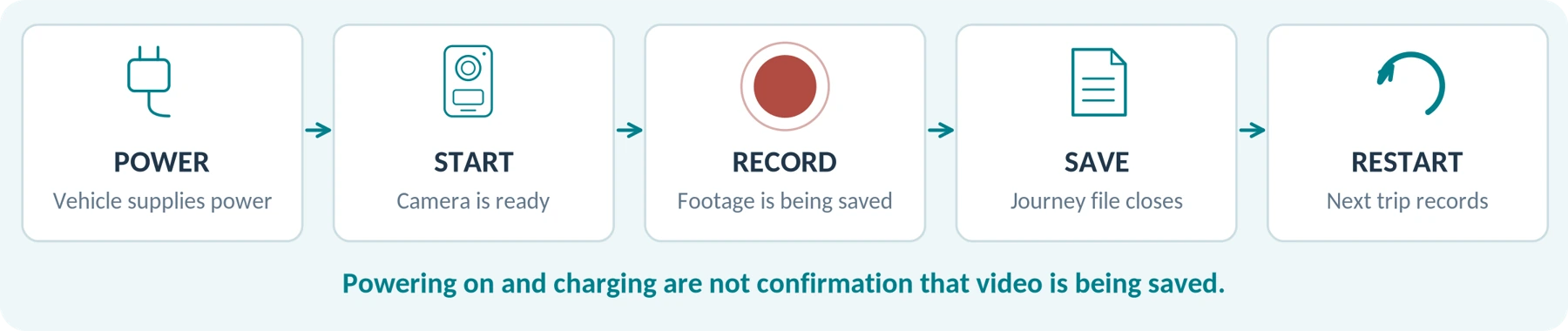
Then check each step separately. Powering on is not the same as starting a recording. A charging symbol is not a recording confirmation. A menu called “Car Mode” or “Vehicle Mode” should be explained by the manual for that exact model.
For everyday use, test several normal starts rather than one successful connection. Check behavior after a short stop, after a longer shutdown, and after reconnecting the camera. Confirm that the required mode and time settings remain correct.
Ask how your selected power outlet behaves when the vehicle is switched off. Nextbase distinguishes ignition-switched and permanently live power arrangements in its installation guidance. Your installer or vehicle documentation should establish which arrangement you actually have. [5]
For a hybrid or electric vehicle, describe the vehicle's actual operating and parked states when requesting compatibility advice. Do not use the sound of an engine as your test of whether the camera has power.
Manual activation can be acceptable for a planned, occasional recording. It is not a substitute for automatic operation when automatic operation is one of your essential requirements.
Startup trial record
Use normal vehicle transitions and disposable footage. Complete the record only when safely parked.
| Trial | What to confirm in the saved file |
|---|---|
| Normal first start | Recording began: Not specified File opened: Not specified |
| Short stop and restart | Recording resumed: Not specified Mode retained: Not specified |
| Longer shutdown and reconnect | Recording resumed: Not specified Time correct: Not specified |
Can It Record While Charging from the Car?
![Functional checks only, not an electrical wiring diagram. Use approved components and a qualified installer for hardwiring. [^5] [^6]](https://spikecam.com/wp-content/uploads/spikecam-knowledge/a06/figure-06.webp)
Treat these as different questions: whether the camera accepts power, whether it charges, and whether it records in that connection state.
USB connections can have different behaviors. VIOFO documents a card-reader mode in which a computer can access the camera's storage and some camera controls become unresponsive. That is a specific example of why a connected USB cable does not, by itself, establish normal recording operation. [6]
For the proposed body camera, request confirmation of recording with the exact vehicle adapter, cable, and port. Check for interrupted footage or a declining battery during a representative recording period.
Use a manufacturer-approved power arrangement with the correct output and capacity. Nextbase warns that unsuitable vehicle USB supplies can cause power cycling or recording problems. Do not assume that a convenient phone-charging port is suitable for your camera. [5]
For hardwired installations, have a qualified installer establish compatibility and safe routing. Do not connect a USB-powered camera directly to a vehicle electrical feed or improvise wiring from a generic diagram.
What Happens When External Power Disappears?
Ask whether the camera continues on its battery, finishes the current file and shuts down, or follows another documented sequence.
Nextbase explains that the small internal battery in its relevant dash cams helps complete and save the current recording when external power is removed. It is not intended to replace the normal external supply for a full journey. [7]
For either candidate, check the final saved file after a manufacturer-permitted power-transition test using disposable footage. A device powering off neatly does not establish that the last recording is intact.
Can You Leave a Body Camera in a Parked Car?
Do not assume it is suitable for storage or operation in a parked vehicle. The AXIS W120 manual specifically warns against leaving that body camera in a car because parked-car temperatures can exceed its limits. It also distinguishes operating-temperature and charging-temperature requirements. [8]
This warning concerns that product, not every body camera. Its purchasing lesson is to request the exact model's operating, charging, and storage limits, together with any restriction on vehicle use.
![Operating, charging and storage limits must be checked separately. No temperature rating is assigned to a generic camera. [^8] [^9]](https://spikecam.com/wp-content/uploads/spikecam-knowledge/a06/figure-07.webp)
A dash cam also has limits. VIOFO's heat guidance describes thermal protection that can stop recording and switch the camera off. Being designed for vehicle use does not establish uninterrupted recording at every temperature. [9]
Our recommendation is to reject permanent installation when the required conditions exceed the documented limits. Removing a camera after each journey may be a reasonable routine for some occasional uses; it does not solve an unattended-parking requirement.
Evaluate any external battery or power bank under its own instructions too. Extra power is not permission to leave a device charging in conditions its manufacturer prohibits.
Heat shutdown can protect equipment while still leaving a gap in the recording you wanted. Build your decision around both safety and coverage. [9]
Record the manufacturer’s limits
| Limit to verify | Camera / accessory documentation |
|---|---|
| Operating temperature | Range and conditions: Not specified |
| Charging temperature | Range and conditions: Not specified |
| Storage / vehicle restrictions | Exact instruction and source: Not specified |
Loop Recording and Incident Protection: Will Important Files Survive?
A journey recorder needs a clear policy for what happens when storage fills.
Nextbase describes loop recording as replacing the oldest unprotected footage with new recordings. A long drive can therefore continue without manually clearing space—but older footage is not a permanent archive. [10]
![Looping and clip protection do not replace a verified backup. Preserve important material once safely parked. [^10] [^12]](https://spikecam.com/wp-content/uploads/spikecam-knowledge/a06/figure-08.webp)
Check whether the proposed body camera supports the required behavior, whether it is enabled, and how to preserve an important event. Do not assume “continuous recording” means automatic overwrite when full.
Also check recording continuity separately from storage management. VIOFO notes that motion-detection settings on some models can pause driving recordings when no motion is detected. Our recommendation is to use the documented normal continuous-driving mode when complete journey coverage is required. [11]
An Event Lock Is Not a Backup
VIOFO documents both automatic G-sensor triggers and manual methods for protecting clips. Those are mechanisms to check on the specific model, not a guarantee that every relevant incident will be recognized. [12]
Ask how much footage before and after the event is preserved, which camera channels are included, and what happens when protected storage fills. Nextbase warns that protected footage can also be overwritten when its allocated space reaches its limit. [10]
Once safely parked, preserve important material promptly. Our recommended process is to export the relevant original files, include adjoining clips where they contain necessary context, verify playback, and make the required backup. Keep edited sharing copies separate.
For removable storage, follow the exact camera's compatibility and endurance requirements. VIOFO's card guidance treats write speed, endurance, and model compatibility as separate considerations. A familiar capacity label alone is not a complete compatibility check. [13]
Can a Body Camera Provide Parking Monitoring?
![Conceptual timelines; no universal buffer duration or recording delay is implied. Mode behavior varies by model. [^11] [^14] [^15]](https://spikecam.com/wp-content/uploads/spikecam-knowledge/a06/figure-09.webp)
Only count this capability when the complete parked-car setup is documented and tested. A body camera left recording is not automatically providing event detection, protected clips, battery protection, or a suitable unattended installation.
Start with two questions: What keeps it powered after you leave? What recording behavior runs during that period?
Nextbase's Series 2 guidance requires a suitable permanent power supply for its described parking setup and explains that an impact can wake the camera to record a protected clip. That is different from saving a continuous overnight video. [14]
Parking Modes Do Not All Capture the Same Evidence
| Documented approach | What it means for your evaluation |
|---|---|
| Wake on impact | Check how quickly recording begins and whether any pre-impact footage exists. Nextbase describes waking to record after an impact in its Series 2 guidance. [14] |
| Buffered event recording | Check the actual saved lead-up, trigger, and compatible model. VIOFO documents pre-event buffers on specified models and exclusions on others. [15] |
| Time-lapse | Check the gaps between captured frames and whether sound is saved. VIOFO describes reduced-frame, silent playback in its documented time-lapse parking mode. [11] |
| Low-bitrate continuous recording | Check whether the stored detail meets your needs. VIOFO describes continuous parking capture at a reduced bitrate. [11] |
A camera that wakes after a trigger should not be assumed to have footage from before it. Likewise, a buffer available in a wearable recording mode should not be assumed to operate in every parking or power-saving mode.
Parking Power and the Two-Camera Option
Battery Protection Means Recording May End
VIOFO identifies low-voltage cutoff and parking timers as normal reasons for parking recording to stop. A setup stopping as configured is not necessarily faulty, but it is no longer recording. [16]
Low-voltage protection is also not a promise that a vehicle can never develop a flat battery. Nextbase explains that the vehicle's other electrical loads continue after camera cutoff and that battery-management systems and capacities vary. [17]
Have the installer select compatible equipment and appropriate settings for the vehicle. Do not choose a lower protection threshold merely to maximize recording time, and do not deliberately drain the vehicle battery during a test.
For remote viewing or notifications, ask for a separate demonstration of the required connection and service. Saving a parking clip, saving the moments before an impact, and sending an alert are three different requirements.
When Does Using Both Cameras Make More Sense?
For someone who needs both journey recording and authorized recording away from the car, compare two complete proposals: one camera transferred between positions, or separate cameras assigned to each task.
Consider a delivery-work example. The required outcome might be a fixed road record during travel and an appropriately worn camera for permitted on-foot tasks. The decision is whether transferring one device preserves both requirements without an unacceptable gap—not whether carrying two cameras sounds excessive.
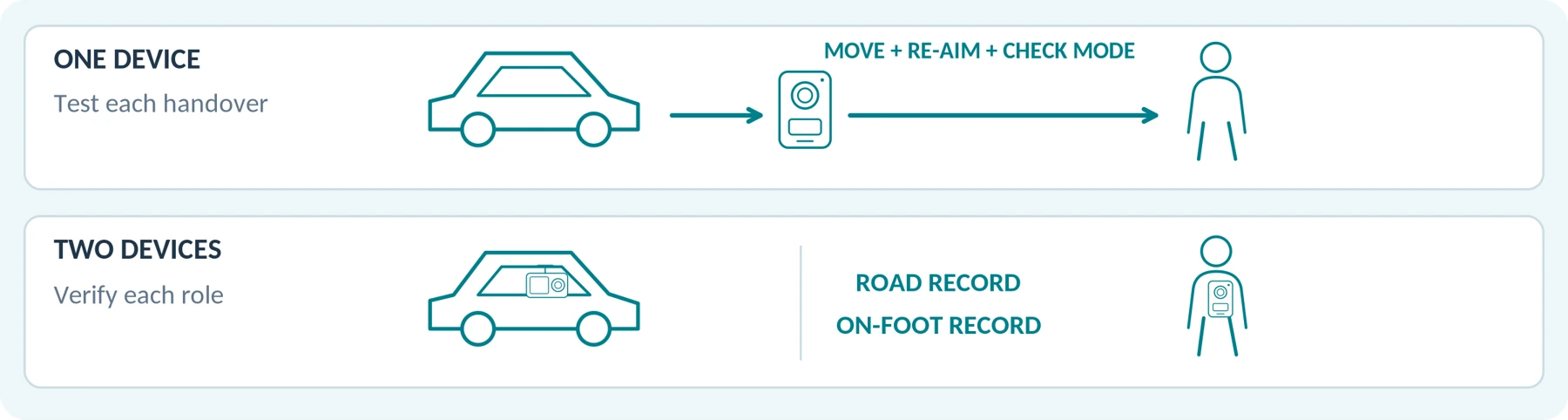
During a trial, check the handover itself. Does the device return to the correct mount and mode? Is its angle still correct? Is enough battery and storage left for the next task?
Compare the additional cost of suitable mounts, vehicle power, storage, and any required installation or service. Count the body camera you already own as existing equipment, but do not ignore the cost of making it suitable for the new job.
The companion guides, Do Body Cameras Require a Subscription? Fees Explained and How Much Does a Body Camera Cost? A Buyer’s Budget Guide, cover fees in more detail. Here, the decision is simpler: do the savings justify the extra setup work without sacrificing an essential requirement?
Your In-Car Compatibility Checklist
Keep manufacturer information separate from your test results. A brief successful test does not override a prohibited use in the manual; a listed feature does not prove correct operation in your installation.
Use Confirmed, Not supported, or Unverified for written compatibility, and Pass, Fail, or Not tested for your trial.
| Requirement | Manufacturer or installer confirmation | Check in your actual setup |
|---|---|---|
| Mounting and coverage | Supported mount, permitted location, and installation restrictions. | Required views remain clear; the device does not interfere with driving. |
| Activation and restart | Behavior when power arrives, disappears, and returns. | The intended recording starts on successive normal trips. |
| External power | Approved adapter, cable, port, and recording-while-powered behavior. | Stable recording without unwanted mode changes. |
| Temperature suitability | Operating, charging, and storage limits; any vehicle-use prohibition. | Planned use stays within the documented conditions. |
| Day and night footage | Supported recording modes and illumination controls. | Usable moving detail through the installed glass. |
| Storage and incident preservation | Full-storage behavior, supported cards, and protection rules. | Files are complete, retrievable, and backed up when needed. |
| Parking, when required | Compatible power supply, trigger, buffer, timer, and protection settings. | The specified parking mode starts and saves the expected kind of clip. |
| Privacy and file handling | Applicable organizational requirements and access controls. | Approved people can retrieve the appropriate recordings. |
Mark a non-required feature Not needed rather than failing a suitable basic setup. Conversely, do not let several optional features cancel out one failed essential requirement.
Device and installation record
Camera / firmware: _____________________________________________________ Vehicle / model year: ____________________________________________________ Adapter / cable / mount: __________________________________________________ Installer or supplier / date: ________________________________________________
Test Before Relying on It

This is a proposed acceptance test, not a report of testing performed for this guide.
First, test while safely parked. Confirm the approved installation, aim, recording indicator, audio setting, date and time, and normal power transitions. Use disposable recordings. Never stage a collision, strike the vehicle, or interfere with safety systems to test an impact trigger.
Next, record a representative journey without interacting with the camera while driving. Start and configure it before departure. Review the files only after parking safely. Check the beginning, end, transitions between files, and any section where the vehicle normally changes its power state.
Finally, test parking separately when the manufacturer supports it. Use a permitted demonstration method and confirm which mode was active. A recording made during the first few minutes after stopping does not establish all-night coverage. Do not use a parked-car heat experiment to discover a device's safety limits.
Repeat relevant checks after changing the mount, power arrangement, recording settings, or firmware. Periodically open actual recordings: an indicator light is useful feedback, but the saved file is what you ultimately need.
Recording Rules Still Apply
Check the applicable rules for camera placement, driver distraction, audio, privacy, and sharing in the country or US state where you will use the equipment. Obtain any required employer or vehicle-owner approval, especially for work, leased, or rented vehicles.
For UK organizational use, the ICO's vehicle-surveillance guidance addresses both outward-facing cameras and cabin recording. It calls for appropriate privacy information and generally recommends audio be off by default, with exceptional use justified. The page is currently marked as under review. [18]
Do not apply that guidance as a single rule for all US and European uses. This article does not determine whether a particular recording is lawful or admissible in court. Seek qualified local advice for uncertain uses, and prioritize safe driving over collecting footage.
The Bottom Line
A body camera can be a useful temporary in-car recorder when its mounting, power, operating limits, and saved footage meet a clearly defined need. It is not automatically a complete dash-cam replacement.
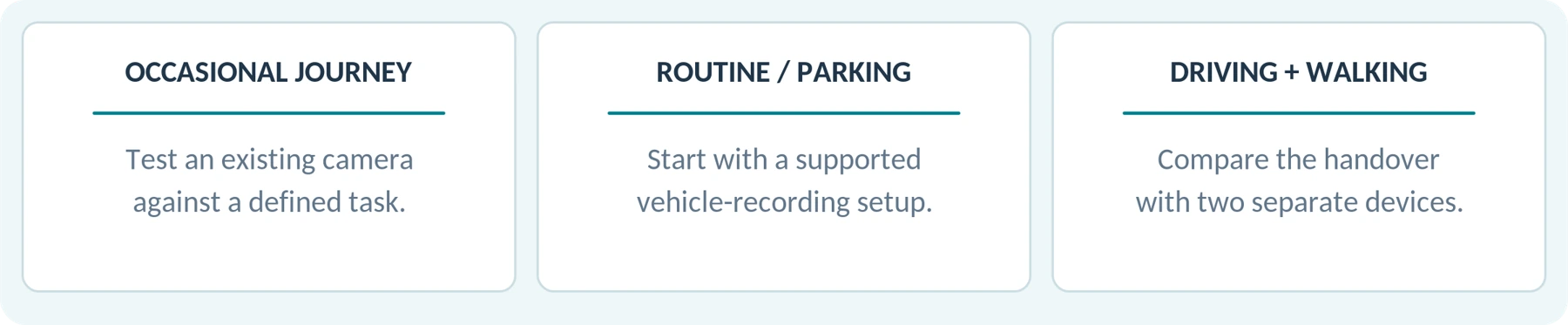
For routine automatic journey recording or supported unattended parking coverage, our recommendation is to start with a dedicated vehicle-recording setup. For occasional use, test your existing equipment before buying another camera. For work that moves between driving and walking, compare a two-device arrangement with the real effort and gaps involved in transferring one.
When asking about a SpikeCam model, provide the exact model, intended mounting position, recording duration, vehicle power arrangement, and whether parking recording is required. Request model-specific confirmation; do not assume that another manufacturer's features described here apply to it.
Your setup comparison worksheet
Use one row for each required outcome. Keep an unanswered question marked Unverified, not assumed supported.
| Required outcome | Body-camera setup | Dash-cam setup |
|---|---|---|
| Recording duration / views | Not specified | Not specified |
| Mount / external power | Not specified | Not specified |
| Startup / storage / export | Not specified | Not specified |
| Heat / parking suitability | Not specified | Not specified |
| Complete cost / unresolved items | Not specified | Not specified |
Decision and remaining checks: ___________________________________________ _____________________________________________________________________
Sources and editorial scope
The numbered citations in the text link to the source notes below. Click a source title to open the original page. Access dates are preserved from the article: September 23, 2026.
01 BOBLOV. M5 Body Camera — product listing and vehicle-mount variants
02 GOV.UK. Using a phone, sat nav or other device when driving
03 Nextbase. Dash Cam ‘Night Vision’ explained
04 Axis. Troubleshooting guide for image quality
05 Nextbase. Recommended power options for Nextbase dash cams
06 VIOFO. What Is CardReader Mode? Why are the camera buttons not responding?
07 Nextbase. How to test your Dash Cam battery
08 Axis. AXIS W120 Body Worn Camera — user manual
09 VIOFO. Why is the camera so hot to touch? Can Dashcams withstand heat?
10 Nextbase. What Is Loop Recording?
11 VIOFO. What is Auto-Event Detection? What Parking Mode to Choose?
12 VIOFO. How To Lock Videos?
13 VIOFO. What memory card is recommended for a VIOFO dashcam?
14 Nextbase. How does Smart Parking work on Nextbase Series 2 Dash Cams, and what are the setup requirements?
15 VIOFO. Advanced Buffered Parking Mode
16 VIOFO. Why isn’t parking mode working?
17 Nextbase. Will my Dash Cam drain my car battery?
18 ICO. Surveillance in vehicles
Editorial scope
Sources checked September 23, 2026. Named products illustrate documented functions or limitations, not rankings, endorsements, or hands-on results. Installation and recording behavior depend on the exact model, firmware, vehicle, accessories, and settings. The test process is proposed, not a published performance result. No unverified vehicle mode, parking capability, or heat rating has been attributed to SpikeCam. ICO guidance cited here concerns UK organizational use and was marked as under review when checked. [18]
Illustration note: all diagrams are conceptual editorial explanations. They are not installation instructions, product photographs, measured timelines or guarantees of any SpikeCam capability.
Related articles
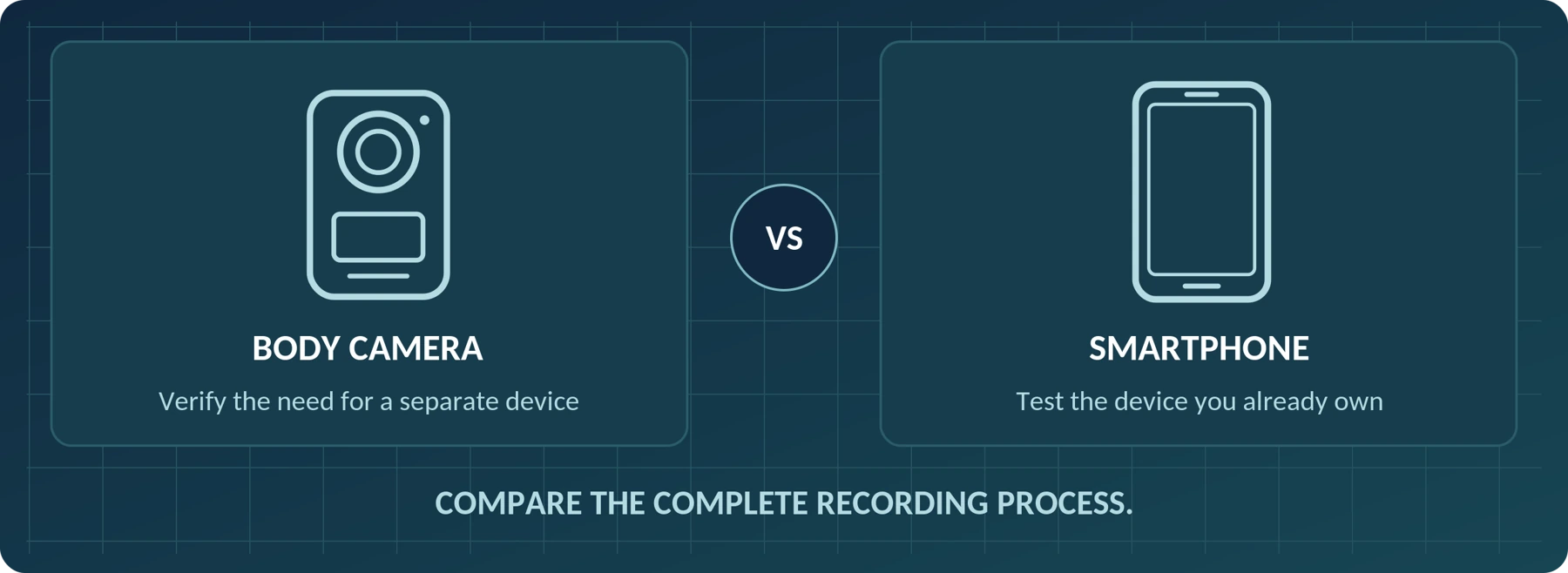
Body Camera vs. Smartphone: Do You Need a Separate Camera?
Decide when a phone is sufficient and when a separate wearable camera fits the recording task.
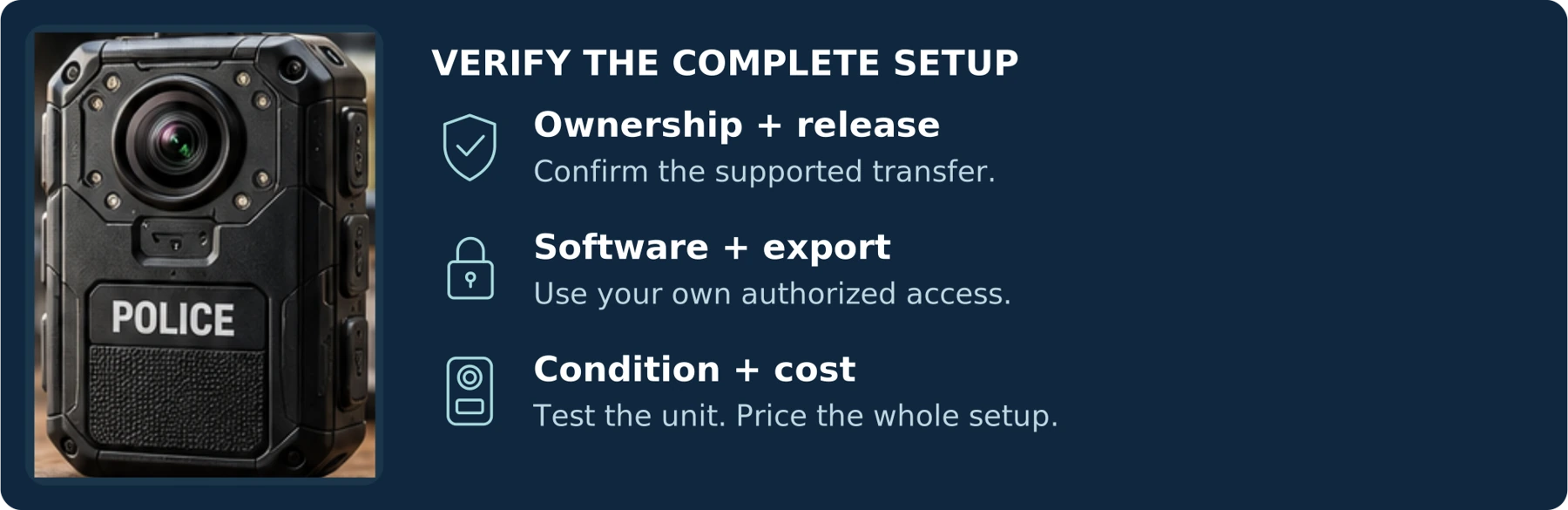
Buying a Used Police Body Camera: What to Check
Check ownership, system release, software access, battery condition and the complete recording workflow.
Body Camera Buying Guide: How to Choose the Right One
Choose a camera around recording controls, battery life, file access and your actual working routine.