Body Camera Docking Stations: A Practical Buying Checklist for Teams
Choose a body camera docking station by checking camera compatibility, return peaks, charging and upload dependencies, and a practical team acceptance test.
Editorial guidance, not legal advice or a model-specific performance promise. Check the rules and requirements that apply to your location and use.
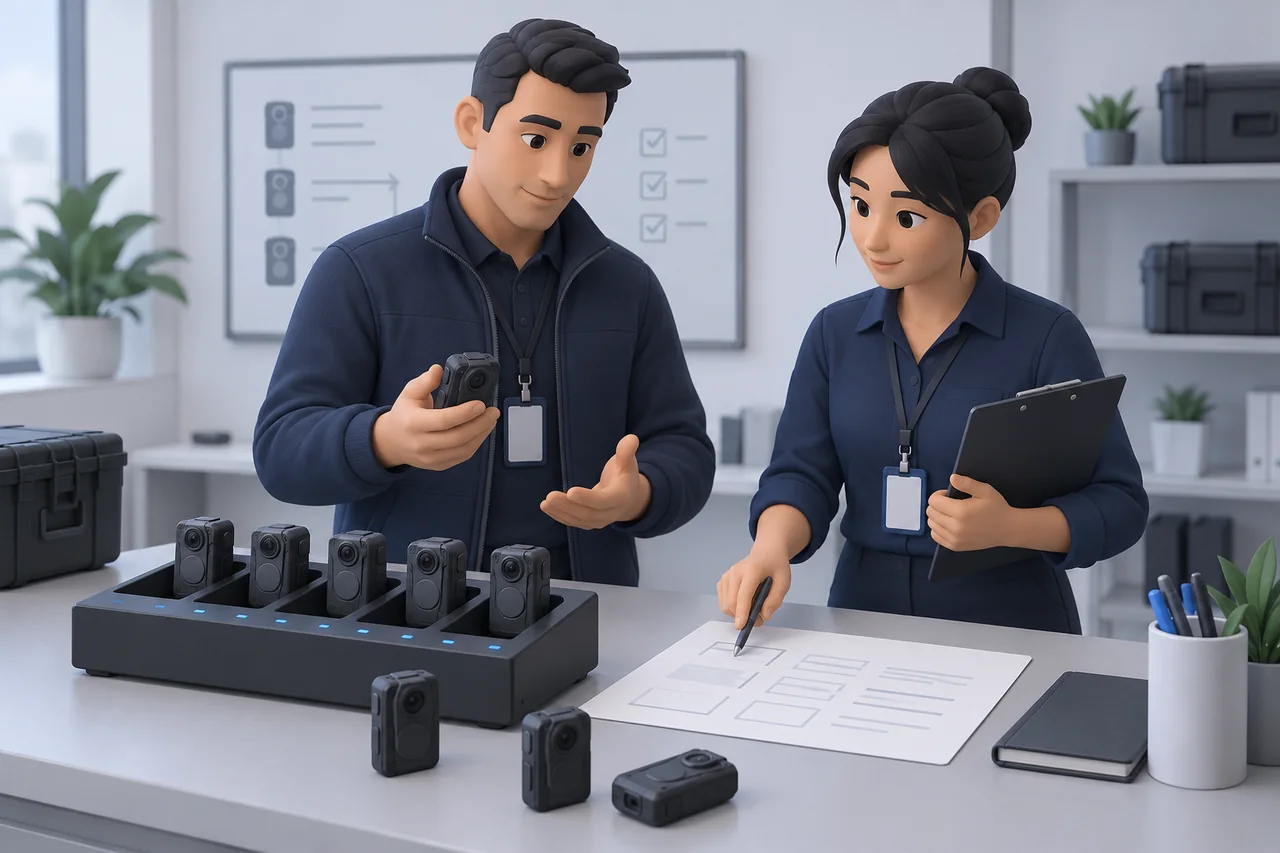
A body camera docking station needs to fit the way your team returns, receives, and reissues equipment. A unit with enough connections on paper may still leave cameras waiting when several shifts finish together. A network socket also leaves important questions unanswered: which software receives the recordings, where they are stored, and who checks the result?
Start with the complete configuration and your busiest return window. This guide provides compatibility, capacity, acceptance, and quotation worksheets for private-security teams. Use them to collect evidence from the supplier and observations from a sample installation. Keep unconfirmed items open until the exact camera, dock, host, and software combination has been checked.
What Does a Body Camera Docking Station Actually Do?
Separate Charging, File Offload, and Evidence Management
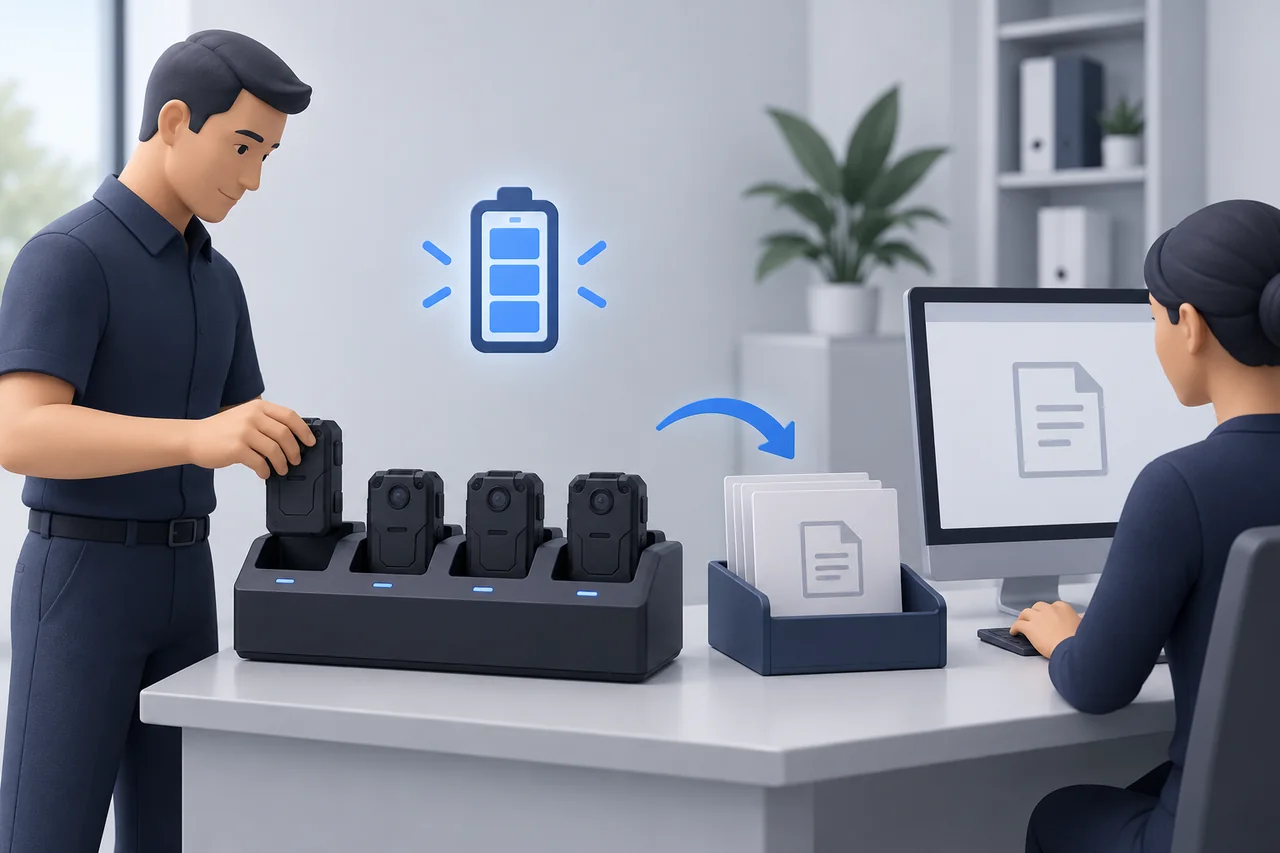
Treat these as separate purchasing requirements. Charging supplies the camera with power. File offload moves recordings to a receiving destination. Evidence management governs activities such as finding, accessing, and exporting those files, according to the supplied software and your organization's rules.
| Task | Components to identify | Confirmation to request |
|---|---|---|
| Charge cameras | Matched dock, cameras, power supply | Supported models and charging conditions |
| Collect recordings | Camera connection, host or network path, collection software | Exact receiving workflow and status meaning |
| Store and manage files | Storage destination, management software, authorized accounts | Included functions, capacity, licenses, and administrator |
Ask What Is Included in the Supplied Configuration
Ask the supplier to mark each component as included, separately quoted, customer-provided, or unconfirmed. A product photograph cannot answer whether a computer, storage drive, or software license is supplied.
Manufacturer documentation illustrates why this distinction matters: Pro-Vision's BODYCAM 4 setup guide distinguishes charging-only operation from video offload, while Hytera describes docking hardware alongside collection software. Those are vendor-specific examples, with no implied compatibility with other products. For the wider storage and service questions, see our body camera subscription guide.
Confirm Camera, Cradle, and Host Compatibility
Check the Exact Camera and Physical Connection
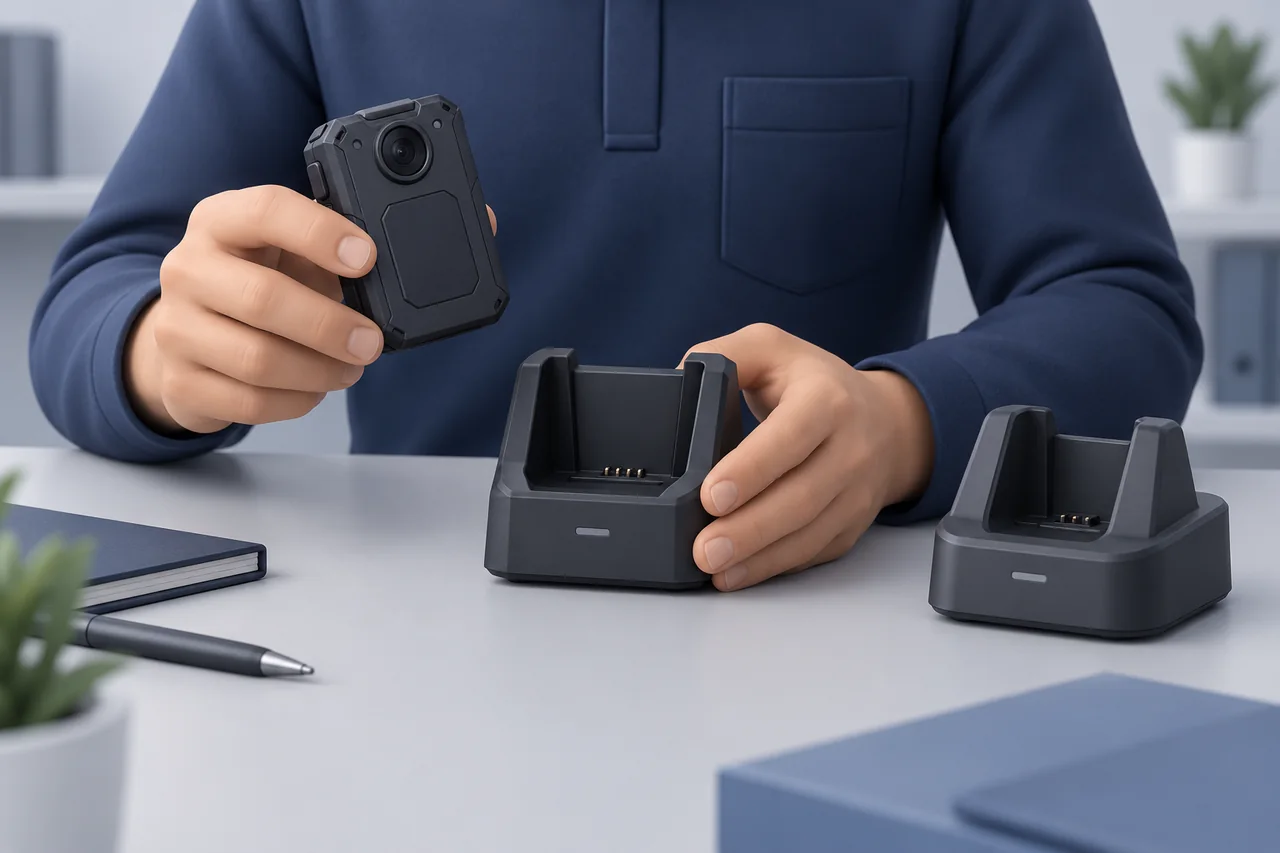
Record the camera model, hardware revision, firmware, and supplied cradle before selecting a body camera dock. Include accessories that remain attached during docking. A clip, case, or differently shaped base can change how a camera seats.
Ask for a written compatibility statement naming the proposed combination. Then inspect the sample using the manufacturer's instructions: does it seat correctly, retain the intended contact, and remain accessible for normal removal? Avoid forcing a camera into a cradle to demonstrate fit. A charging indication alone does not establish that the receiving software can identify or collect from it.
| Field | Supplier evidence | Sample check and open item |
|---|---|---|
| Camera and revision | Named model, hardware, firmware | Compare identifiers with supplied cameras |
| Cradle and connection | Matched part and fit instructions | Check seating with intended accessories |
| Dock and power supply | Exact revision and supplied parts | Match labels and documentation |
| Host and collection software | Supported OS, edition, build | Verify recognition and file receipt |
| License | Included scope and applicable terms | Confirm devices, users, and required renewals |
Verify the Host, Collection Software, and License
Ask the supplier to complete every row for each proposed camera revision. Leave an unsupported OS version or unspecified license marked unconfirmed; do not fill it from another station's brochure.
If your fleet contains several purchase batches, sample the revisions you actually own. Record an approval against the named combination, and ask whether a replacement camera, cradle, or software update would require revalidation.
For example, the DS02 configuration uses a PC USB connection. The camera connector, cradle, host OS, and upload software still require confirmation together. Retain the compatibility statement with the quotation so that substitutions during ordering trigger another check.
Choose the Right Docking and Upload Architecture
PC-Assisted, Networked, and Integrated Stations
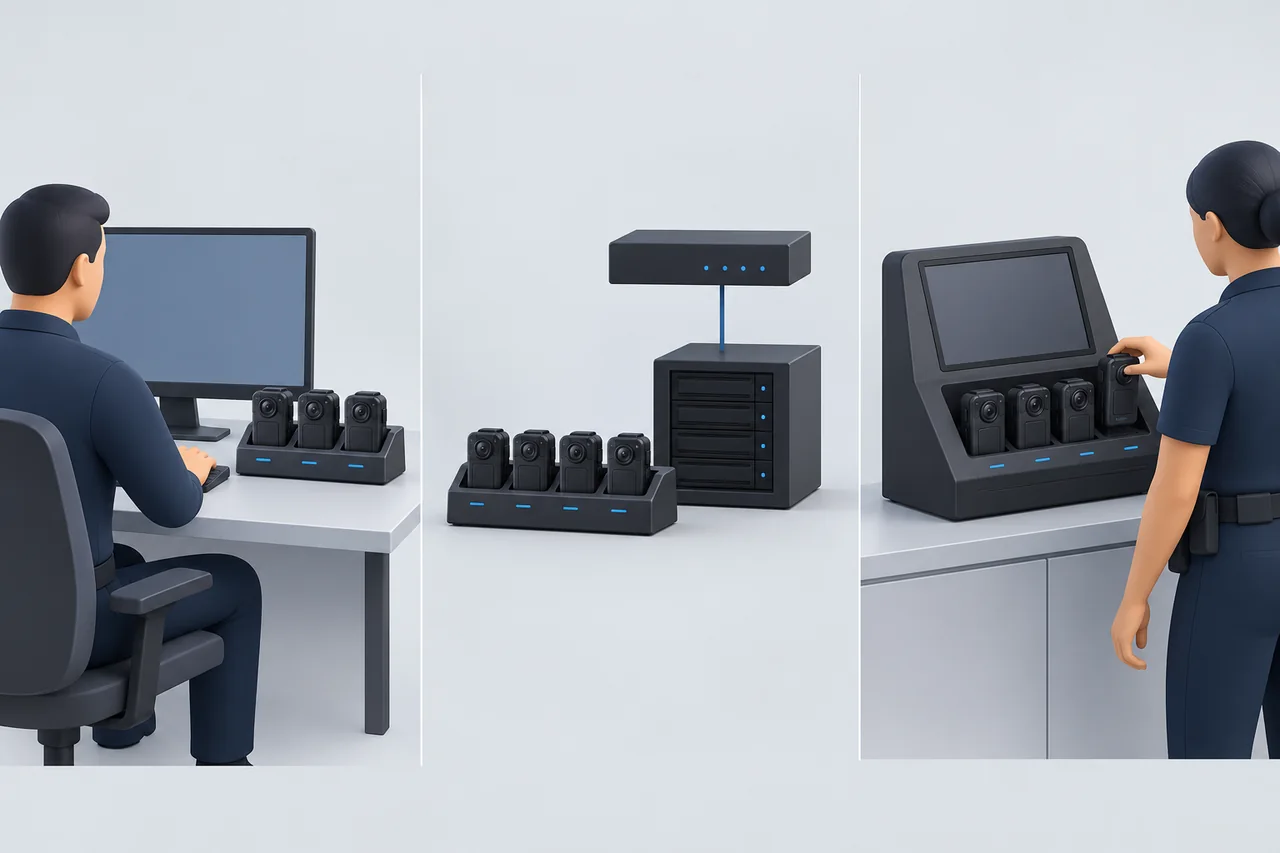
Compare the components that perform each job rather than choosing by connector alone. Use this table as a supplier discussion framework; the actual path must be documented for the offered system.
| Configuration to investigate | Components to name | Buying question |
|---|---|---|
| PC-assisted | Dock, external computer, collection software, destination | Which host must remain available during collection? |
| Networked | Dock/camera network connection, receiving service, storage | What receives the files, and who configures that connection? |
| Integrated station | Onboard computing/software, camera connections, local or network storage | Which functions are integrated, and which remain external? |
Within SPIKECAM's range, DS02N identifies an RJ45 network model; its operating system and collection software need configuration-specific confirmation. DS02A combines Linux with a browser-based workflow. These distinctions do not establish the same software, camera compatibility, or cloud destination across both models.
Name the Destination and the Responsible Administrator
Write the proposed route in plain language: camera → connection → collection component → receiving location. Name the administrator for each component and the person who verifies receipt. Ask who handles account creation, storage allocation, updates, and support escalation.
If a supplier says “web management,” ask which functions the browser provides and where the underlying files reside. Browser access does not by itself identify hosted cloud storage. If a host is required, record who supplies and maintains it. An architecture is ready to evaluate when all these responsibilities have an answer, including items supplied by your own IT team.
Also ask how you obtain support when collection stops. A useful answer names the first contact, the configuration details they need, and the agreed route between the hardware supplier and your receiving-system administrator.
Size the Dock for Your Busiest Return Window
Count Peak Returns and Usable Bays at Each Site
Start with each physical return location. Total fleet size includes cameras that may be working elsewhere, while a station's return peak describes the cameras arriving there together. Record both, then identify when those devices must next be issued.
| Site planning field | What to record |
|---|---|
| Return peak | Cameras arriving together and the observed return window |
| Next issue | Earliest planned reissue and required spare devices |
| Usable bays | Matched, available connections for these camera revisions |
| Occupied or unavailable bays | Devices still processing, faults, and reserved positions |
| Queue and staffing | Where waiting cameras stay and who moves them |
| Contingency | Approved response when a station or receiving component is unavailable |
Do not count a management system's fleet capacity as physical docking capacity. A station can track a larger population over time without accommodating that whole population at once. Recheck the worksheet when sites, shifts, or camera revisions change.
Keep separate worksheets for separate sites. Spare bays across town do not accommodate a camera that remains at the local return desk. Include temporary staff and overlapping assignments in the observed peak, and document whether any proposed movement between sites is operationally realistic.
Use a Bay-Count Example Without Inventing Throughput
Hypothetical example: 24 cameras return together to a station with eight usable, matched bays. The minimum number of loading groups is:
24 cameras ÷ 8 usable bays = 3 loading groups.
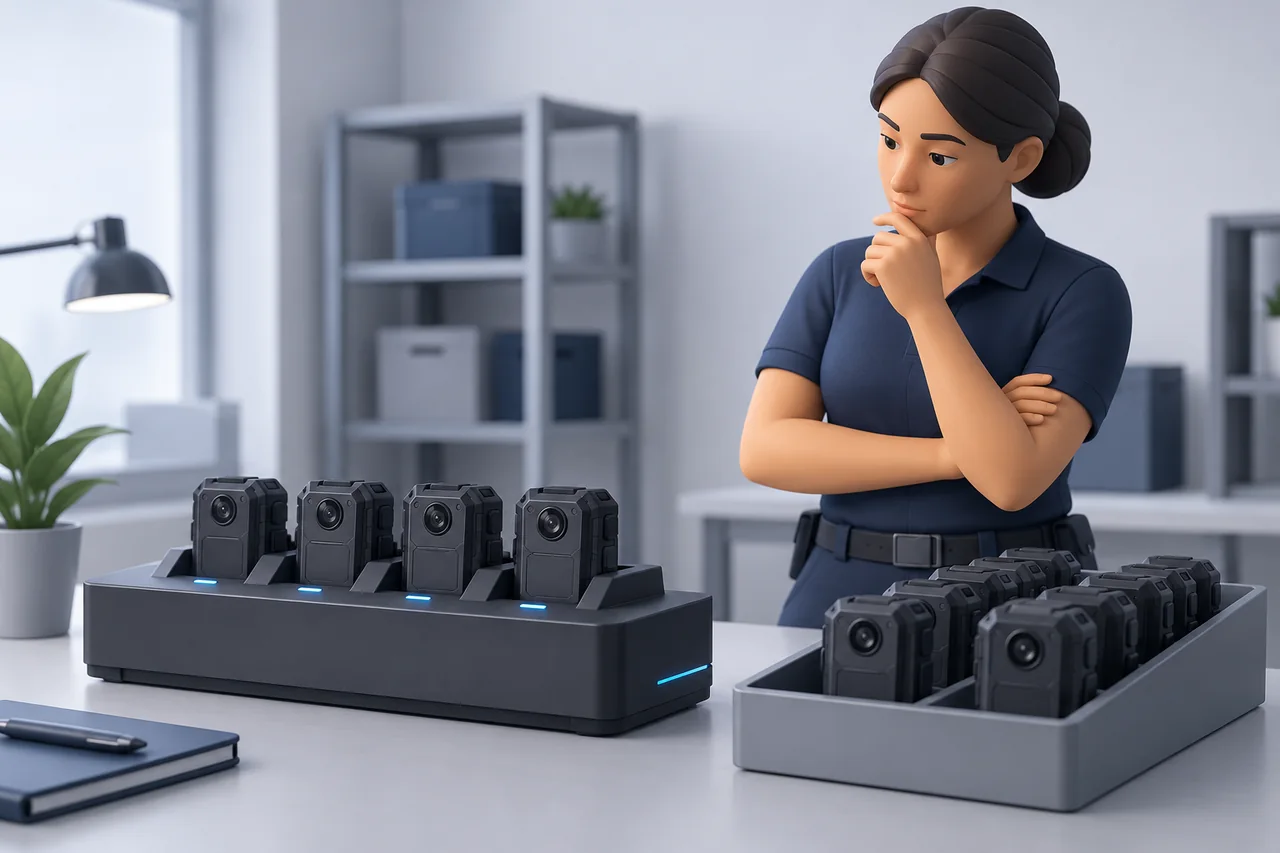
This calculation describes access to bays only. It does not predict when charging or transfer finishes, whether those tasks overlap, or when the next group can move in. The 24 cameras cannot all occupy those eight bays simultaneously.
For other quantities, divide peak arrivals by usable bays and round up to a whole loading group. Keep waiting time, handling, receiving checks, and release decisions separate. Observe those in the complete sample configuration before deciding whether the return window is workable. Do not multiply a single-camera result into an assumed full-station rate.
Check Power, Network, and Storage Dependencies
Record the Complete Power and Data Path
Make a component list before asking IT to approve the station. Include the supplied power variant, host if required, receiving service, and destination storage. Record shared infrastructure that may be busy during the same return window.
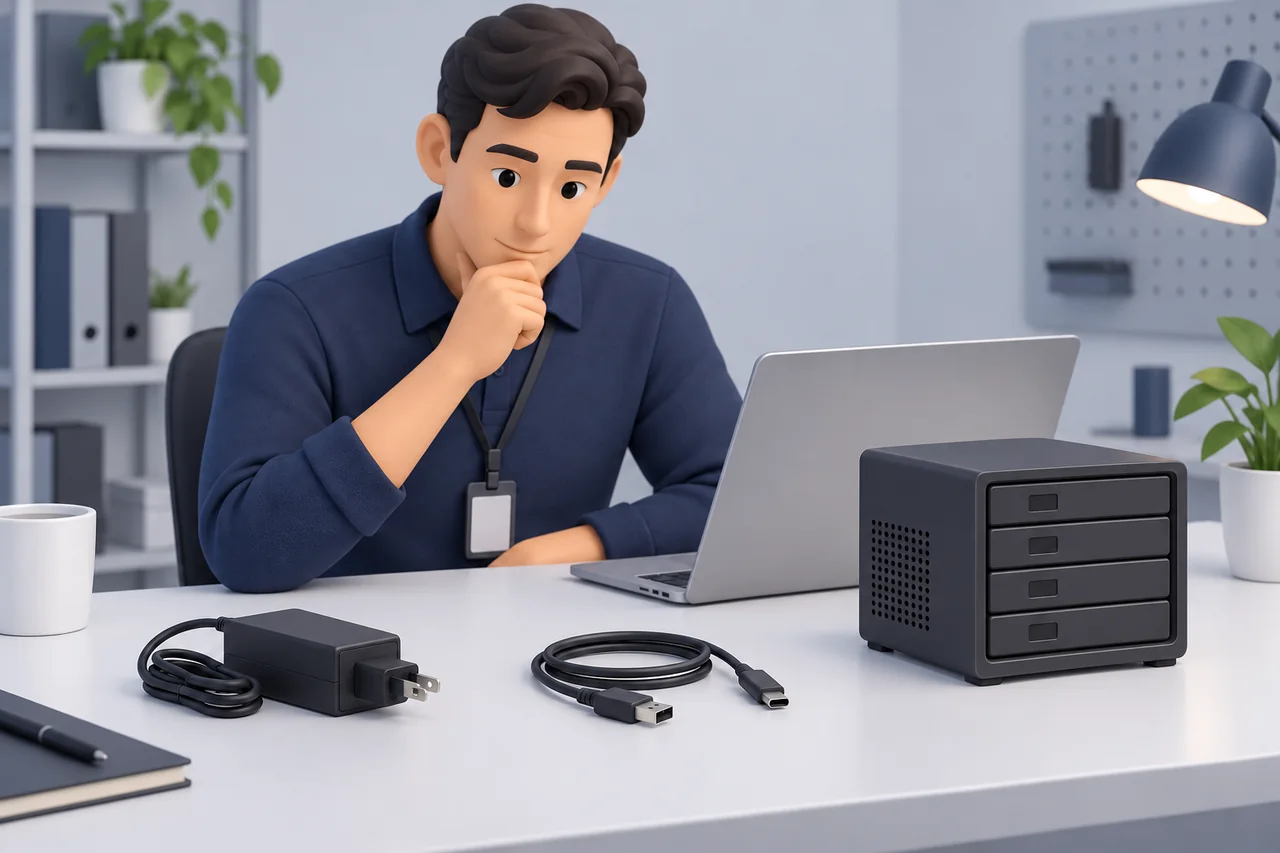
| Dependency | Responsible reviewer | Evidence or open question |
|---|---|---|
| Power and installation | Qualified facilities/electrical personnel | Supplied input variant, installation instructions, site suitability |
| Host and software | IT and supplier | Supported OS/build, availability, license, support owner |
| Data path | IT/network administrator | Approved receiving connection and shared-link conditions |
| Storage | Receiving-system owner | Destination, available space, access, retention, backup responsibilities |
| Failure response | Operations and IT | Where devices and unresolved files remain pending |
Ask IT to Verify the Receiving Environment
Axon's network guide is another model-specific example of network and receiving-system dependencies that need IT involvement. Use the current instructions for your exact configuration. An unrelated vendor's addressing rules, ports, or advertised speeds are not deployment instructions for your station.
Have IT review the intended environment and test method before installation. A connector's theoretical rate does not establish actual file receipt under a full return load. Ask how low storage, unavailable accounts, or a stopped receiving service becomes visible and who responds. Align access, retention, and backup arrangements with organizational policy and applicable local requirements; have the responsible privacy or legal reviewer assess those choices.
During the pilot, note other activity using the same host, link, or destination. Keep that context with the observations so a quiet demonstration and a busy shift return can be compared meaningfully. Record configuration changes before repeating the check.
Specify a Practical Return-Station Layout
Plan Space, Cables, and Return Traffic
Walk through the return with the people who will use the station. Can staff identify their camera, reach the correct bay, and leave without crossing the next person's path? Can the receiving operator inspect connections without shifting other devices?
Use the exact manufacturer's installation and environmental instructions to review placement, ventilation, mounting, and cable routing. Have qualified personnel assess electrical suitability. Avoid inventing a standard clearance or treating every dock as wall-mountable. If considering the DS04 desktop/wall-mount configuration, confirm the installation method and supplied mounting hardware for your site.
Keep Exceptions Separate from Ready Devices
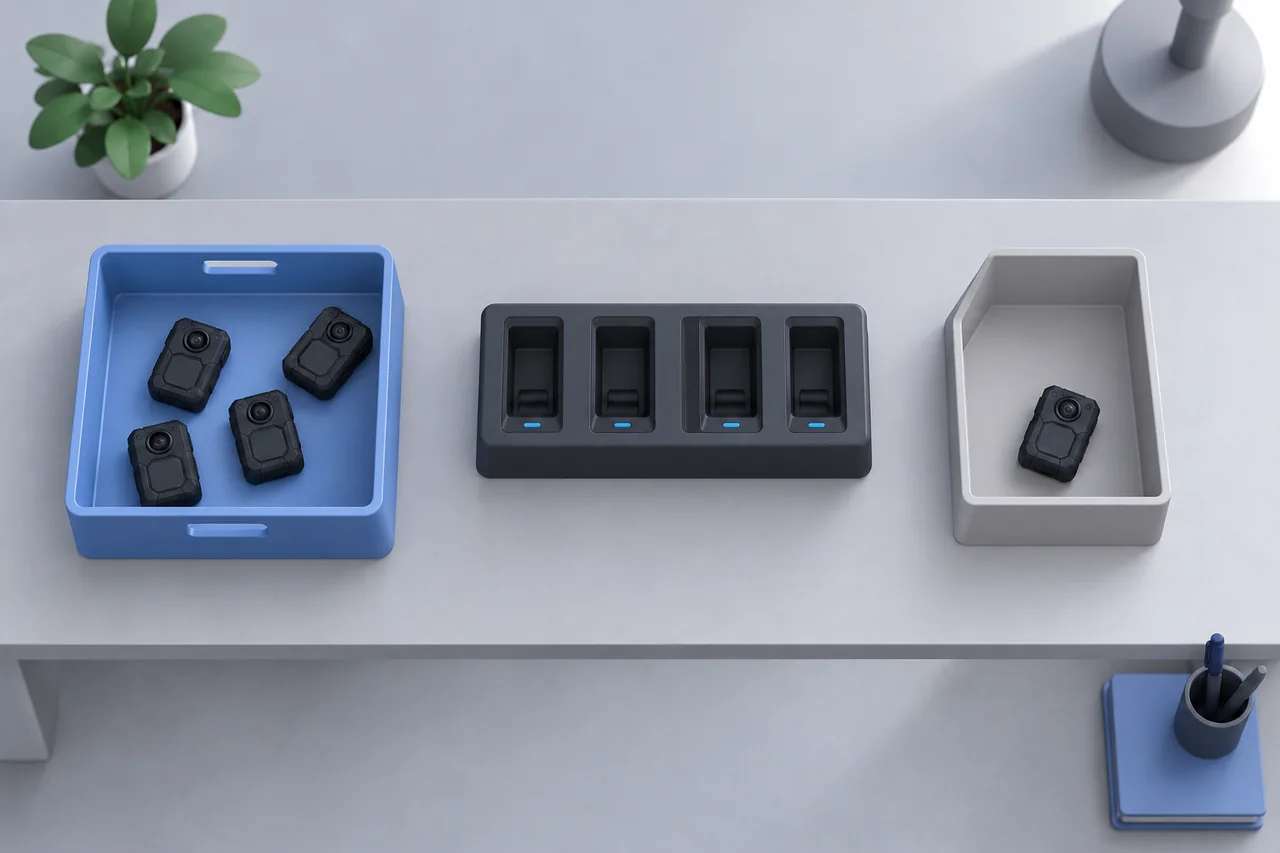
Give the work areas explicit labels and defined positions:
- Incoming: returned cameras waiting for an available matched bay.
- Processing: identified cameras currently connected and being checked.
- Pending exception: cameras awaiting an authorized decision or support action.
- Ready for issue: cameras released under your organization's criteria.
Use device IDs and written states so the layout remains understandable without color cues. Restrict access according to the contents and your organization's rules. Record who can move a pending camera and who can change its release status. A physically clear station should make an unresolved device easy to find at the next handover.
Confirm that the incoming shift can read the pending list without opening recordings or using another person's account.
Define When a Camera Is Ready for Its Next Shift
Track Charging, Receipt, and Release as Separate States
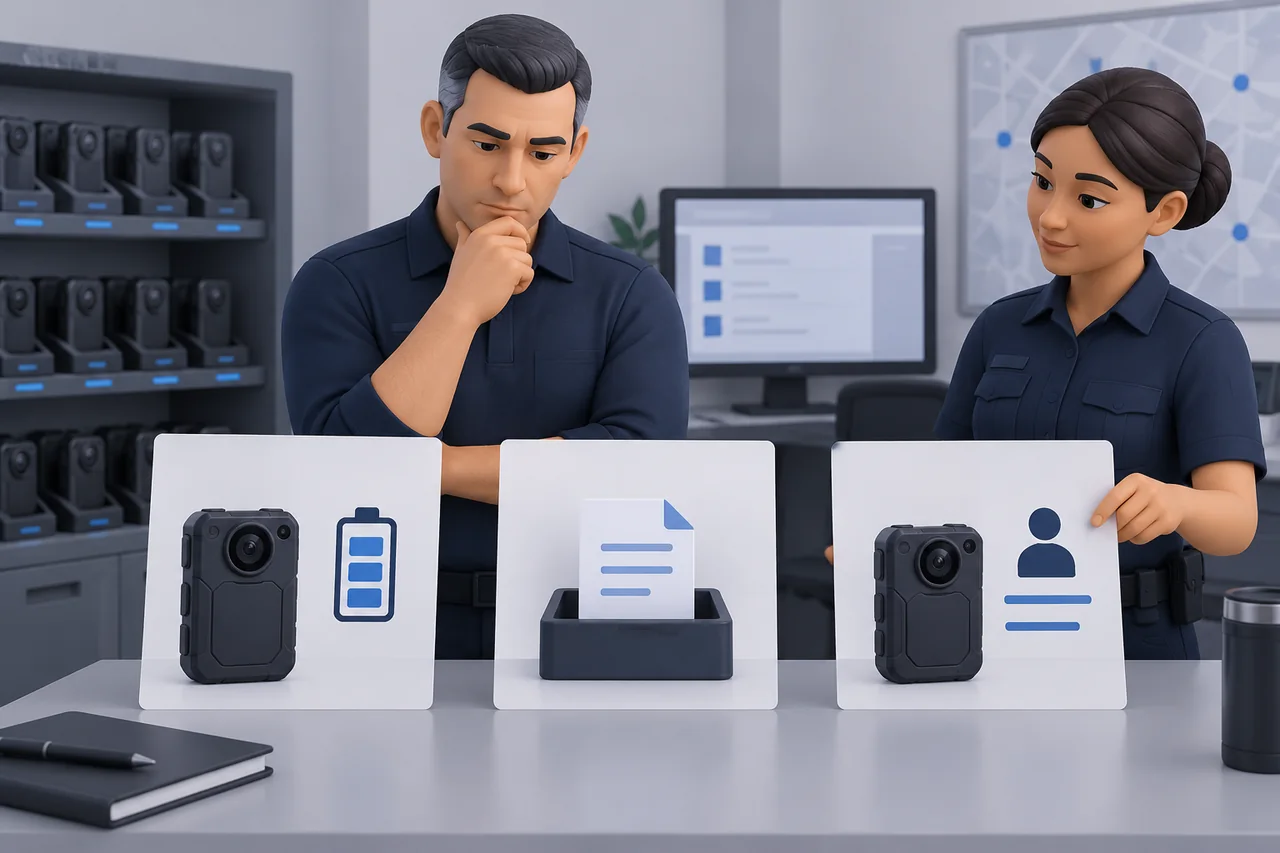
Agree on release criteria before the pilot. Translate the exact station's indicators and software messages into actions your team can verify. Keep charging status, file-receipt status, and the issue decision in separate fields.
Use one record per camera in the return batch:
| Record field | Entry to capture |
|---|---|
| Identity and position | Camera ID, revision, station/bay, return batch |
| Connection | Seating/start time and any recognition problem |
| Charging | Observed state against the agreed release criterion |
| Collection | Reported state, destination, and unresolved errors |
| Receiving check | Authorized check performed, result, and reviewer |
| Release | Decision, decision-maker, time, and any restriction |
| Pending action | Named owner, next action, and follow-up point |
Assign an Owner to Every Pending Item
“Still uploading” needs an owner and a follow-up action. State who will check it, where the camera remains, and how the incoming shift learns that it is unavailable. Record uncertainty rather than allowing a blank field to look like approval.
Keep the previous observation when a state changes. A short entry showing who checked again, what changed, and which action was authorized makes the next handover more useful than an overwritten tick box.
Successful receipt or playback alone does not establish evidentiary completeness, legal admissibility, or verified backup. Deletion, formatting, and reassignment must follow your organization's authorized process; do not make receipt an automatic instruction to clear originals. Use the security-team training checklist to teach staff the approved actions after the station workflow is defined.
Run a Small Acceptance Test Before Scaling
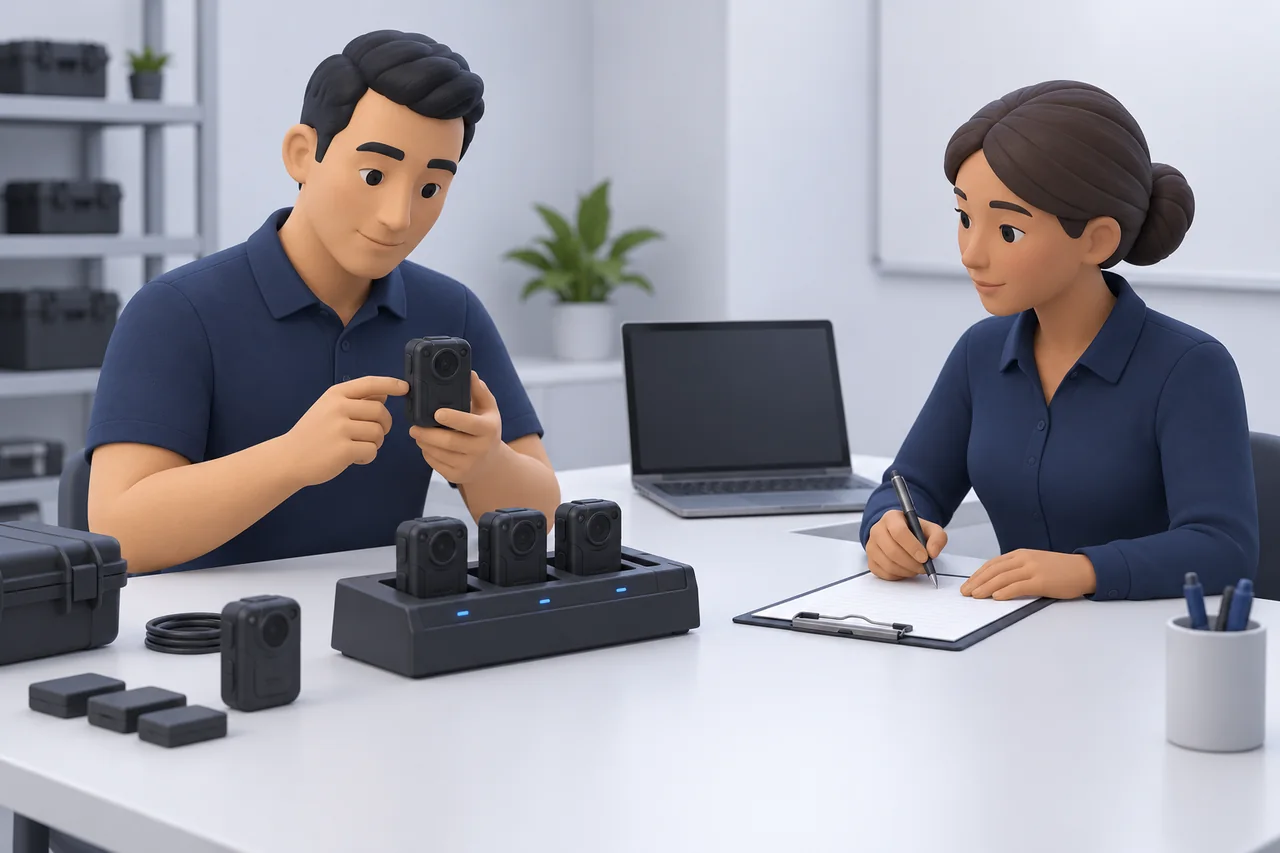
Test the Complete Configuration at Representative Load
Use authorized, identifiable practice recordings and keep original files available. Record the camera revisions, dock, power supply, software build, host, destination, and test conditions. Agree beforehand what would justify acceptance and what requires another investigation.
| Proposed scenario | Observations to enter | Decision and owner |
|---|---|---|
| Single matched camera | Seating/start, recognition, receipt, charging and release observations | Pass, issue found, or unconfirmed; reviewer |
| Representative full-bay return | Same observations per camera; queue and handling record | Whether agreed return-window criteria were met |
| Mixed starting conditions | Initial charge state and representative recording amounts, including longer files | Which conditions require further checks |
| Approved recovery exercise | Starting condition, supported recovery action, receiving check | Remaining issue, escalation owner, retest needed |
This is a proposed recording sheet, not a completed product test. Enter actual start, receiving-check, and release times without substituting advertised figures. Include devices that remain pending at the observation cutoff so the record does not hide incomplete work.
Record Exceptions and Verify the Recovery Path
Have the supplier and IT agree on safe ways to examine interruption or error handling in an isolated or explicitly approved environment. Do not pull power or disconnect a working production station to create a demonstration.
For an exception, record the symptom, affected device/file, supported action, and result. Preserve originals and avoid unsupervised retries, deletion, or resets that could obscure the problem. Retest the corrected configuration under the relevant conditions. If the receiving check remains inconclusive, retain an unconfirmed outcome and a named owner rather than issuing a blanket pass.
Keep the first and repeat observations together. If the second run differs, document the changed condition before deciding whether it resolves the original issue or needs another representative-load check.
Compare Quotes Using the Same Configuration Checklist
Ask for Itemized Hardware, Software, and Support
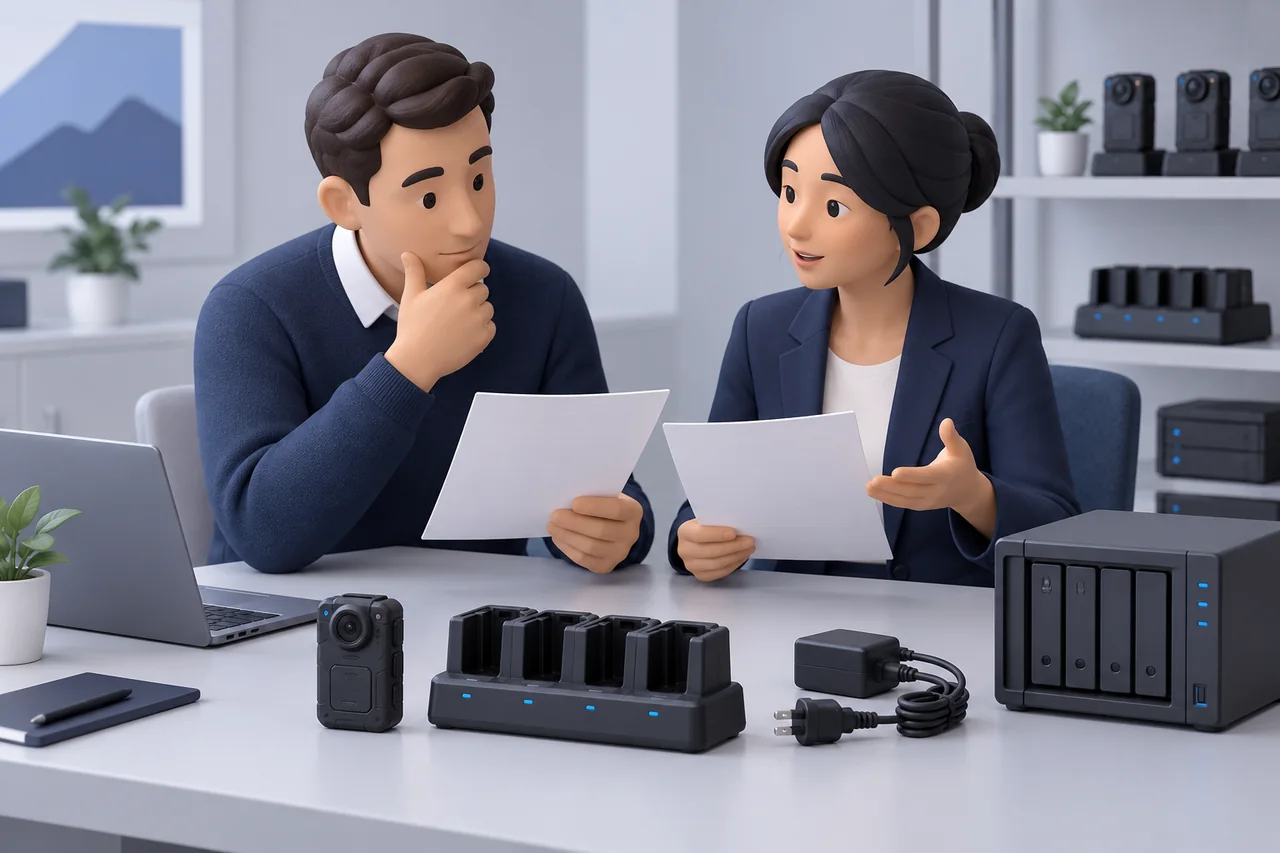
Send each supplier the same requirement sheet. Mark items as included, optional, customer-provided, or unconfirmed so a lower hardware total does not conceal a different scope.
| RFQ field | Information to supply or request |
|---|---|
| Cameras | Exact models/revisions, quantities, attached accessories |
| Return demand | Sites, peak arrivals, available bays, earliest reissue |
| Docking hardware | Station revision, cradles, power variant, cables, spares |
| Computing and software | Host responsibility, OS, collection build, license scope |
| Receiving environment | File destination, storage, network and account responsibilities |
| Delivery of the solution | Installation, sample verification, documentation, support scope |
| Commercial terms | Itemized prices, availability, lead time, and applicable terms for confirmation |
Send the Supplier Your Camera and Shift Requirements
Ask for a written configuration list, compatibility evidence, identified exclusions, and a proposed sample-verification process. Require revised answers when a component or software edition changes. Keep unanswered fields visible in the comparison.
Give each quote its own answer column against your requirement rows. Where suppliers propose different architectures, list the resulting host, storage, support, and staff responsibilities before comparing the totals.
Use our body camera cost and budget guide for wider team costs beyond the docking purchase. To Discuss Your Docking Configuration, bring your camera list, return-window worksheet, receiving requirements, and unresolved pilot observations. This gives the supplier a concrete configuration to assess before a purchase decision.
Common Questions About Body Camera Docking Stations
Can One Dock Work with Every Body Camera?
Do not assume universal compatibility. Check the camera revision, physical cradle, connection, firmware, and receiving software as one combination. Similar shapes or matching connectors do not complete that check. Request written evidence and verify the proposed sample before extending it across the fleet.
Does a Dock Upload Directly to the Cloud?
That depends on the exact configuration. Ask what performs collection, which receiving service is supported, and whether the destination is local, on a network, or a hosted service. A network socket or browser interface does not settle those questions. Confirm required accounts, licenses, and administrator responsibilities separately.
How Many Bays Do We Need, and Can Charging and Uploading Overlap?
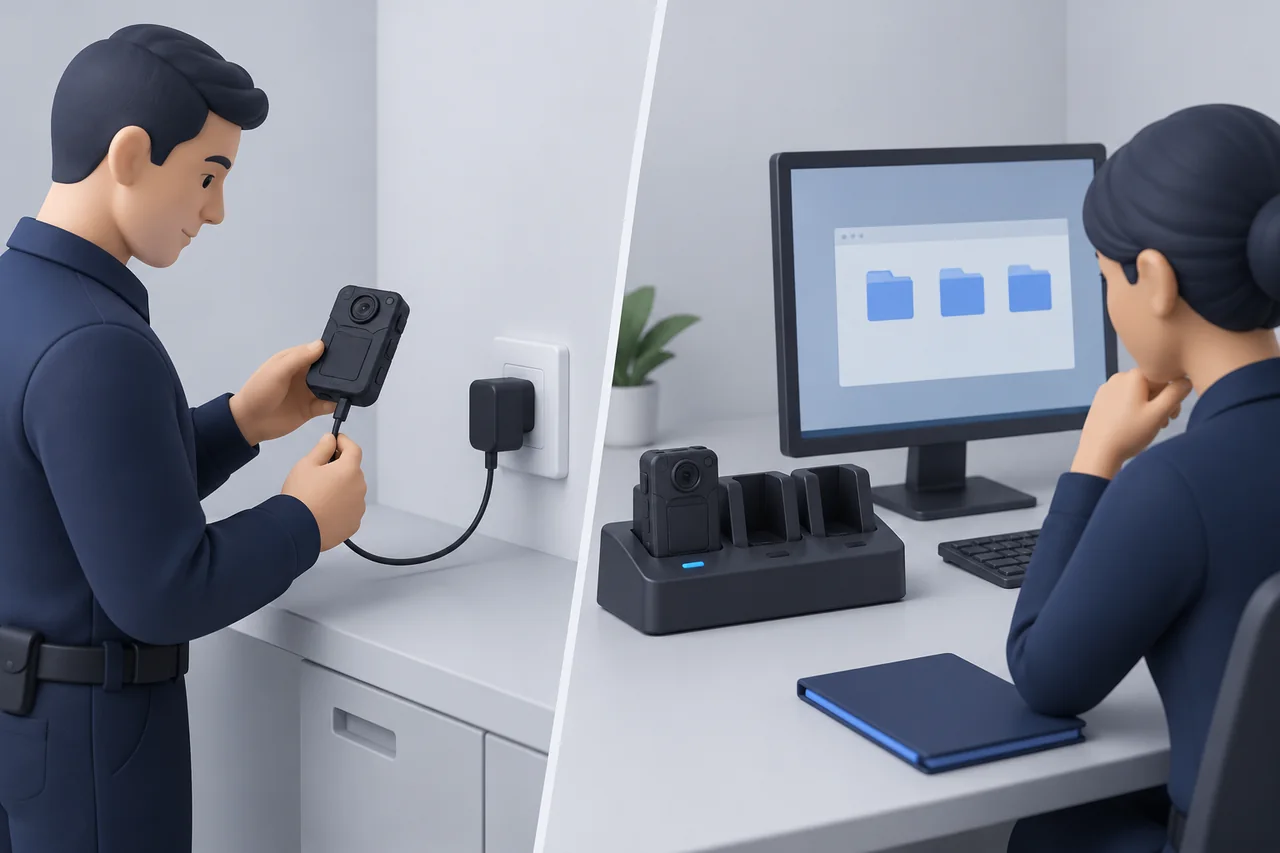
Size usable bays against each site's return peak and reissue window. Bay arithmetic gives a minimum number of loading groups; only observations of the full configuration can establish practical turnaround. Whether charging and uploading overlap, and under what conditions, must be confirmed for the selected camera/dock/software combination. Record both states during acceptance rather than assuming overlap from the product category.
Choose the station after you can connect the compatibility evidence, return-window worksheet, and receiving responsibilities into one workable plan. Bring unresolved items into the sample exercise and quotation instead of filling them with assumptions. A documented configuration and an observed return cycle give your team a clearer basis for deciding what to buy, what infrastructure to prepare, and which questions still need an answer.
Related articles
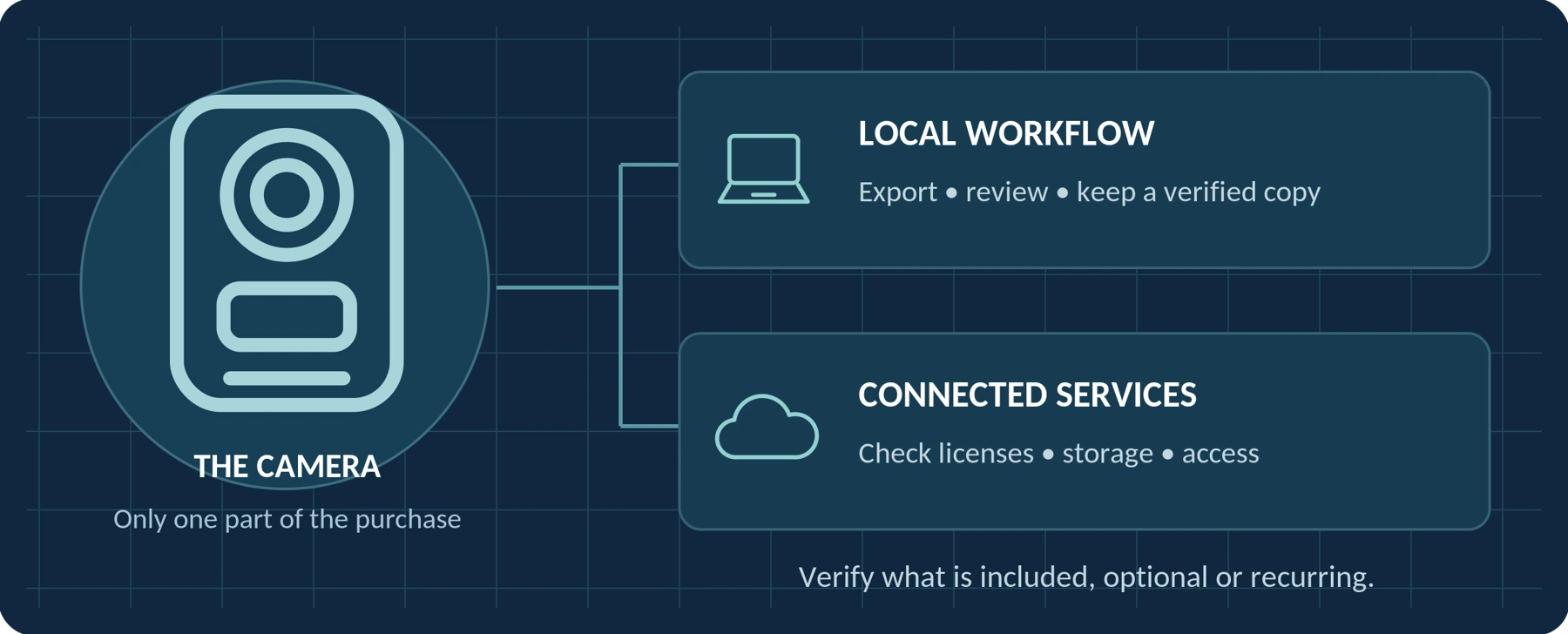
Do Body Cameras Require a Subscription? Fees Explained
Understand local recording, software licenses, cloud subscriptions and access to your recordings.
How Much Does a Body Camera Cost? A Buyer's Budget Guide
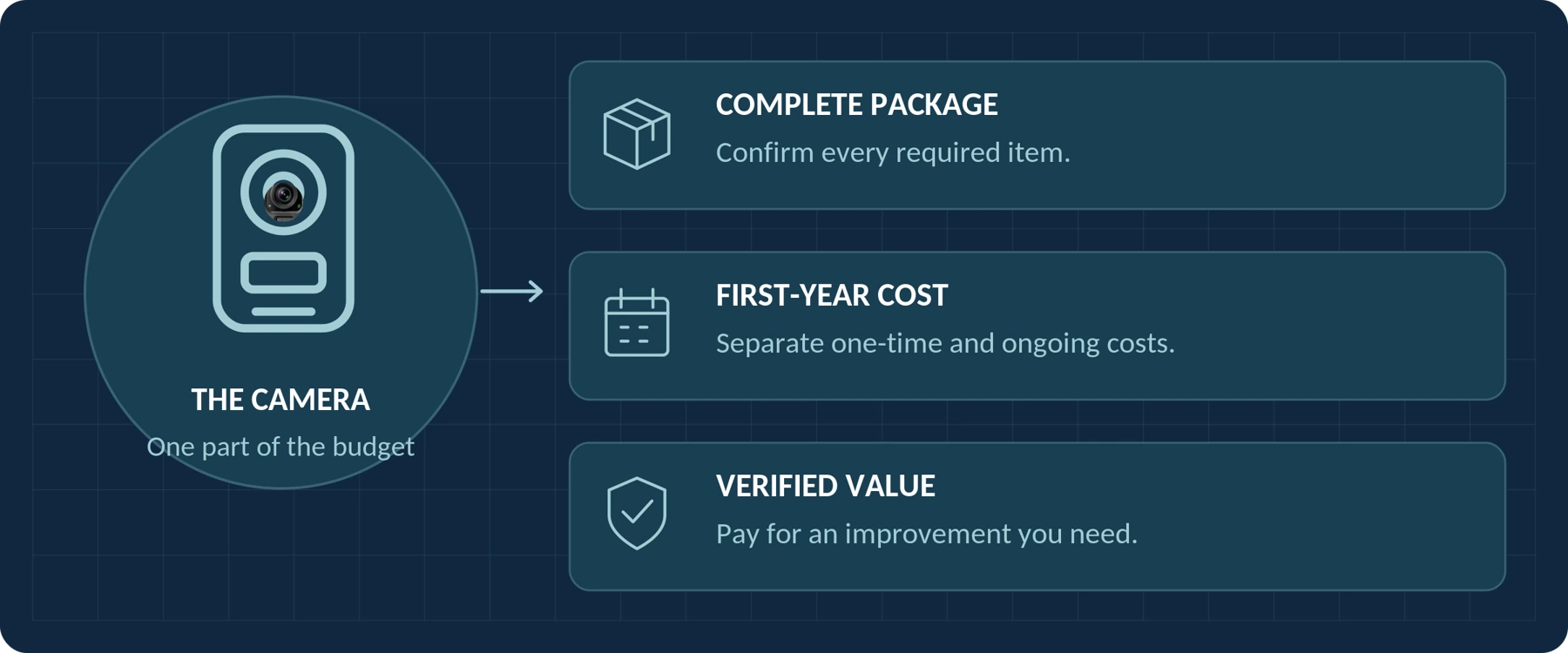
Plan the complete purchase, compare quotations and account for storage, support and ongoing costs.
Body-Worn Camera Training for Security Teams: A Practical Checklist
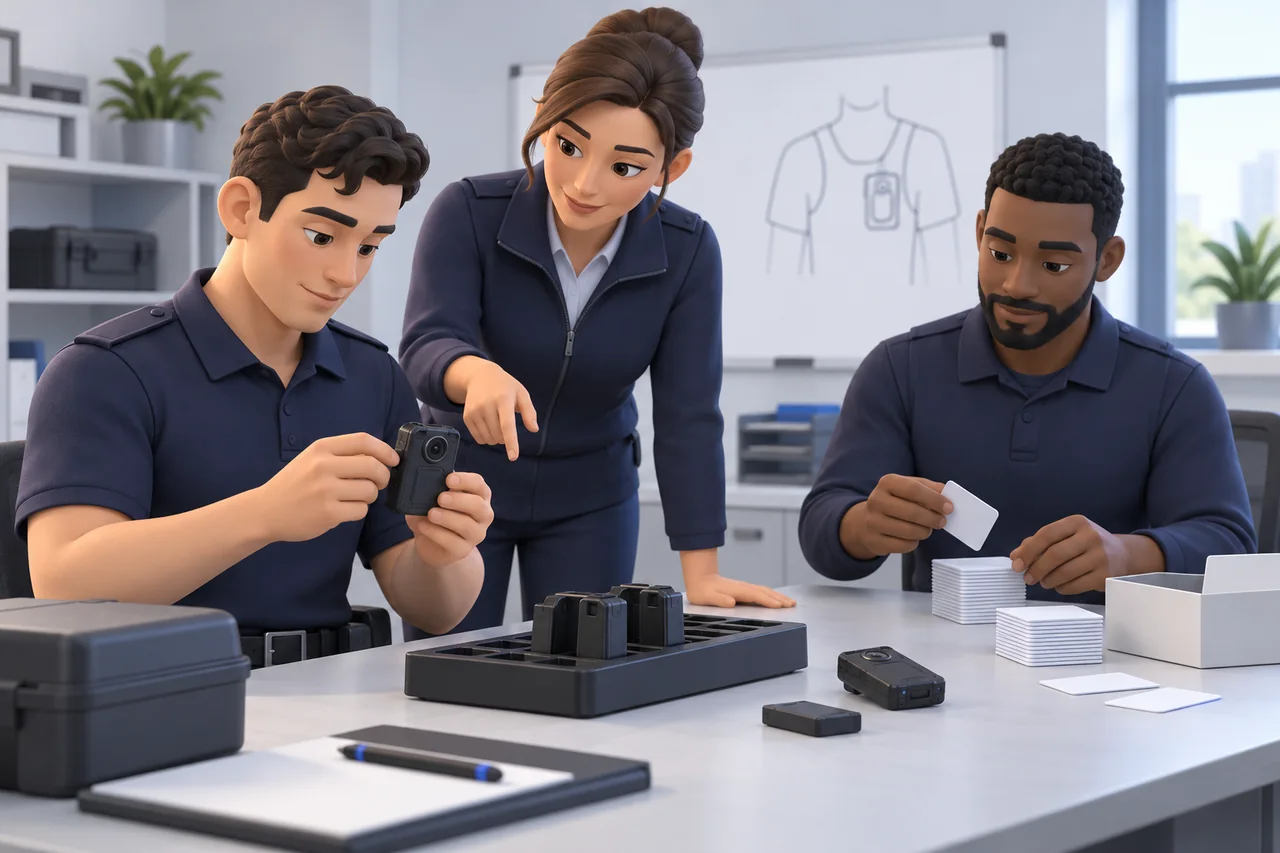
Plan practical body-worn camera training for security teams, with staff exercises, supervisor checks, file-handover practice, and a pilot sign-off checklist.