SPIKECAM S3
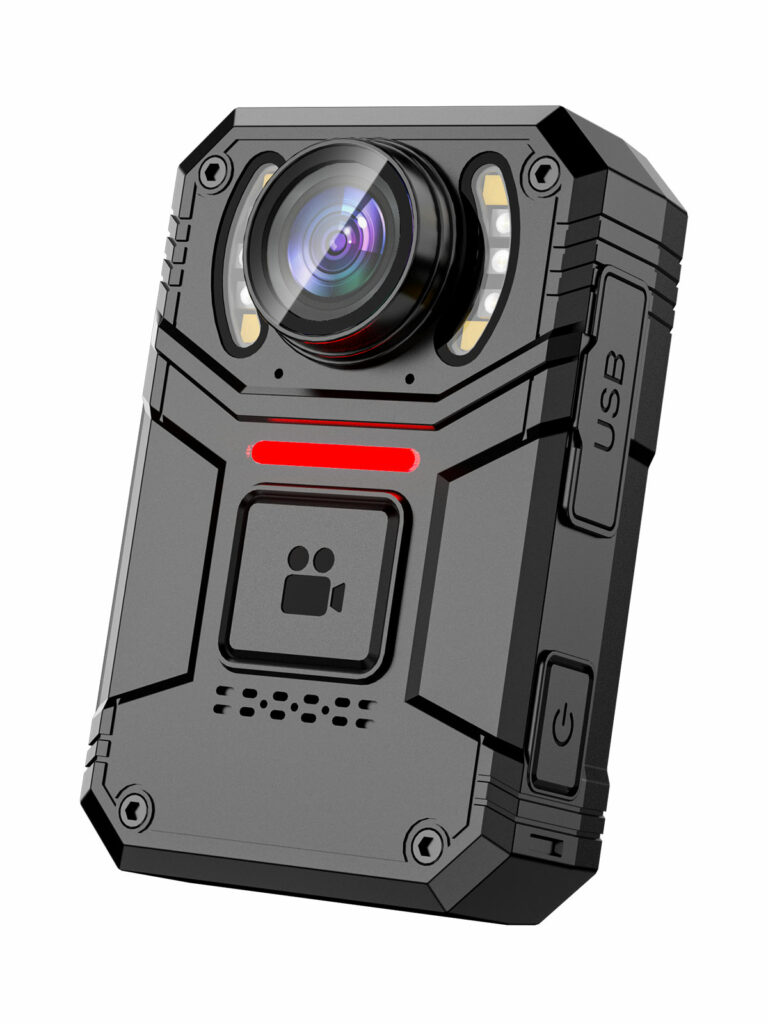
Up to 8 hours
Approximately 7 hours with 4K recording and LCD on. Actual duration depends on settings and use.
View Camera DetailsBuilt around your security shift
Take a camera from the dock, attach it to your uniform and start recording. Back at the office, dock it for charging and automatic video backup with a configured docking and DEMS setup.
Recording time. Comfortable wearing. Simpler handover.
Recording time
Start with the hours your officers need to record, then choose the camera and recording settings.
Up to 8 hours
Approximately 7 hours with 4K recording and LCD on. Actual duration depends on settings and use.
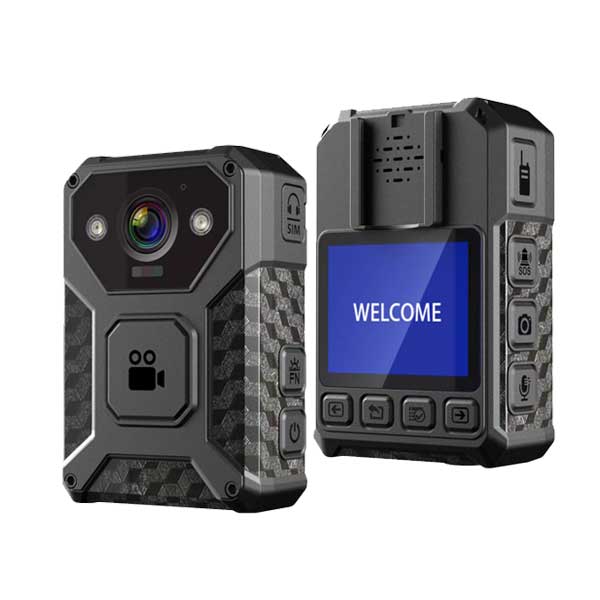
View Camera DetailsMore than 15 hours
At 1080p with 4G and Wi-Fi off
View Camera DetailsResolution, screen use, wireless connections and available storage affect recording duration. Check your planned settings with a sample; the S7+ figure above applies to local recording, with 4G and Wi-Fi off.
An easier routine for your officers
A daily routine for private and corporate security teams: one place for camera pickup, charging and video collection.
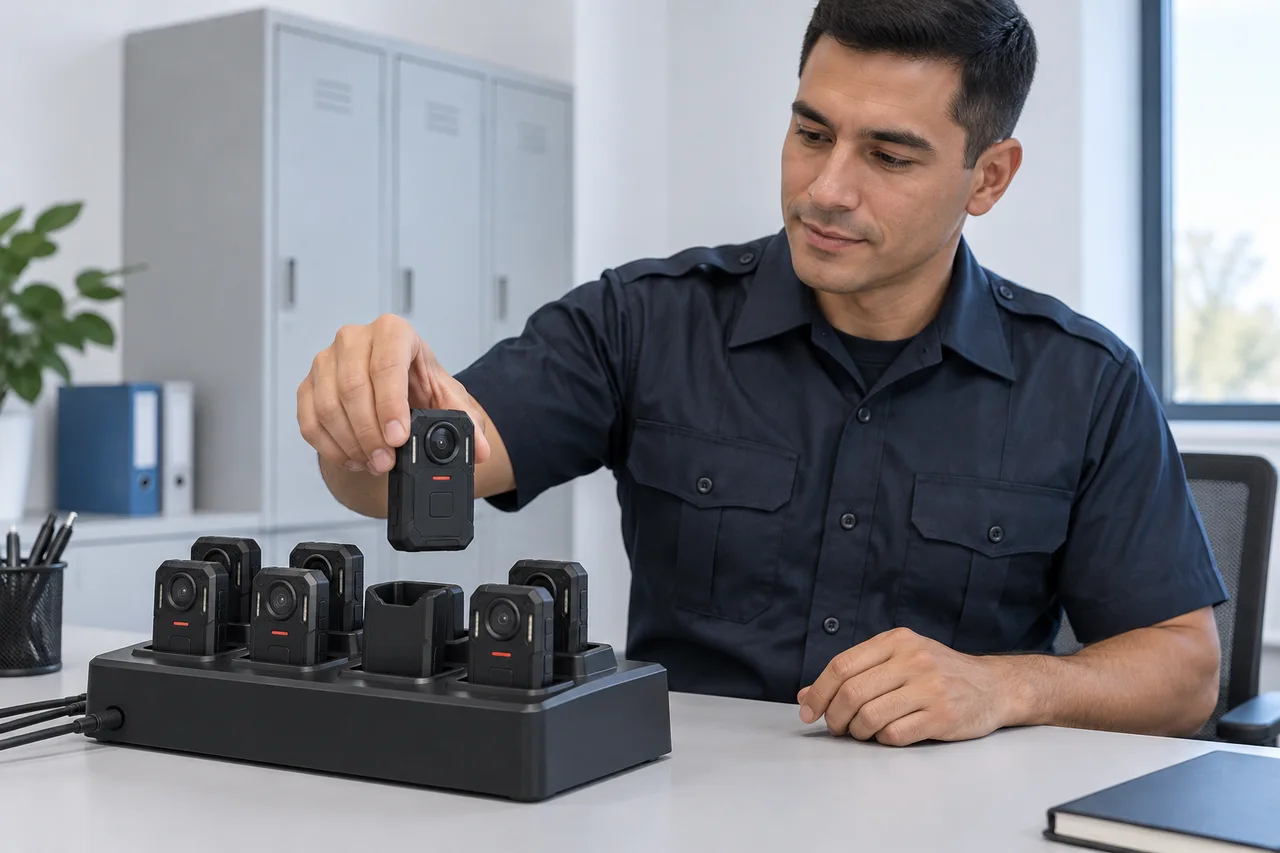
Before the shift
Take a charged camera from the docking station and attach it to your uniform with the selected clip or mount.
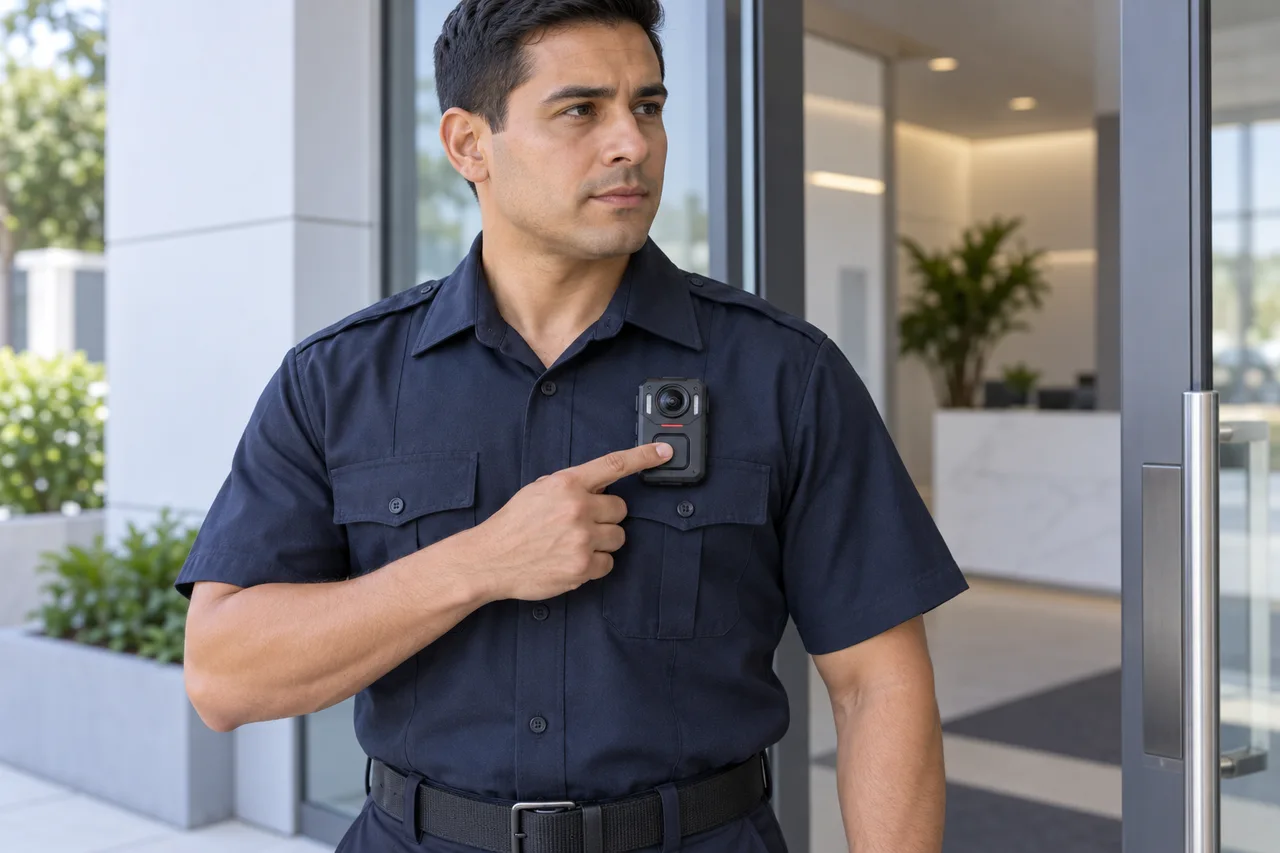
On duty
Switch on the camera, start recording and check the recording indicator before heading out. Choose controls your officers can reach while wearing it.
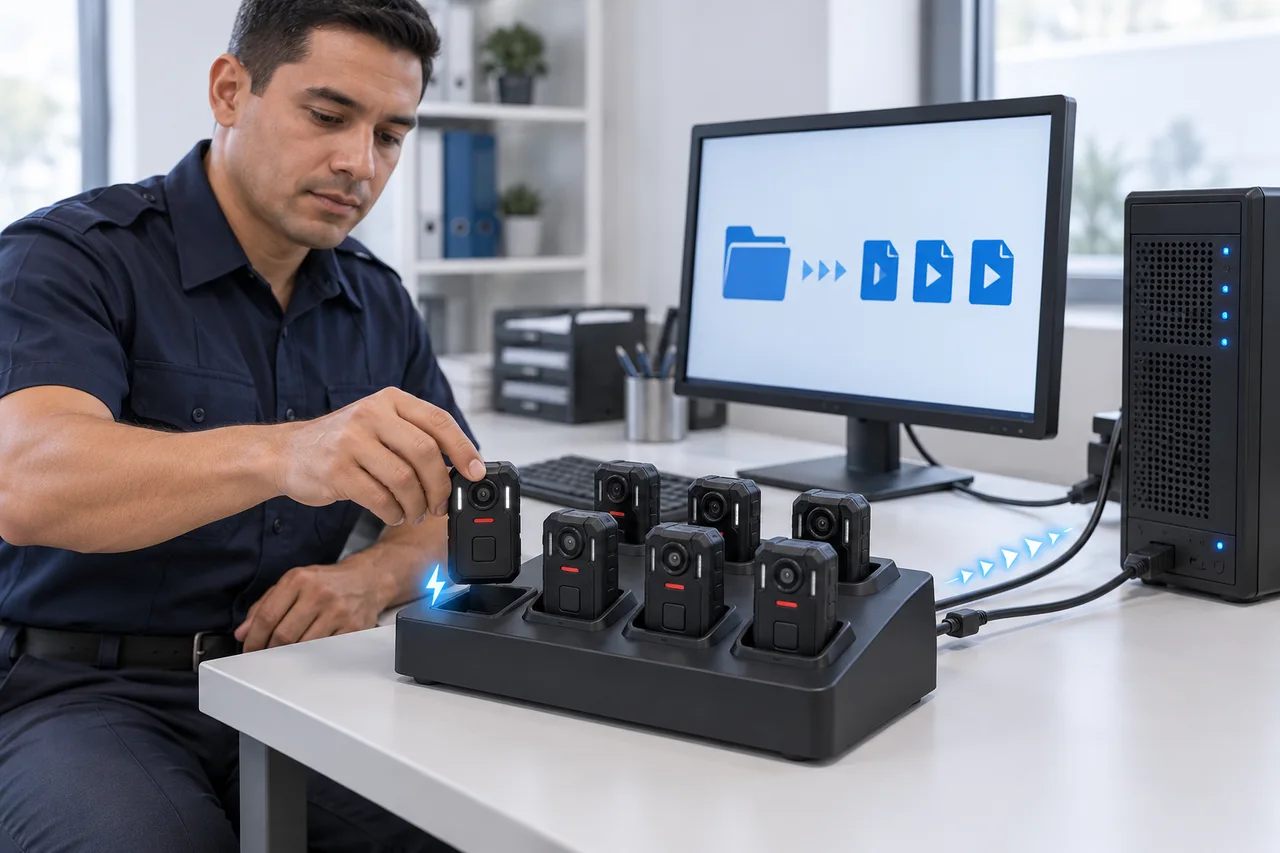
Back at the office
Insert the camera into its matched docking station. With automatic collection configured, it charges while the day's recordings transfer to your selected computer or server storage.
AI-generated workflow illustrations.
Choose collection on an office computer with a compatible PC docking setup, or central storage with the matched DEMS Server/Client or DEMS Web workflow.
Automatic collection requires a matched camera, docking station, DEMS edition and configured storage. Confirm transfer completion and charging status before the next handover.
Clips & mounts
Choose the attachment around your shirt, jacket or vest, so officers can wear and operate the camera during their shift.
Large back clip
A large flat clip for attaching the camera to clothing. Choose the version that matches your camera's mounting interface and try it on your actual uniform.
BC02 Wearing Guide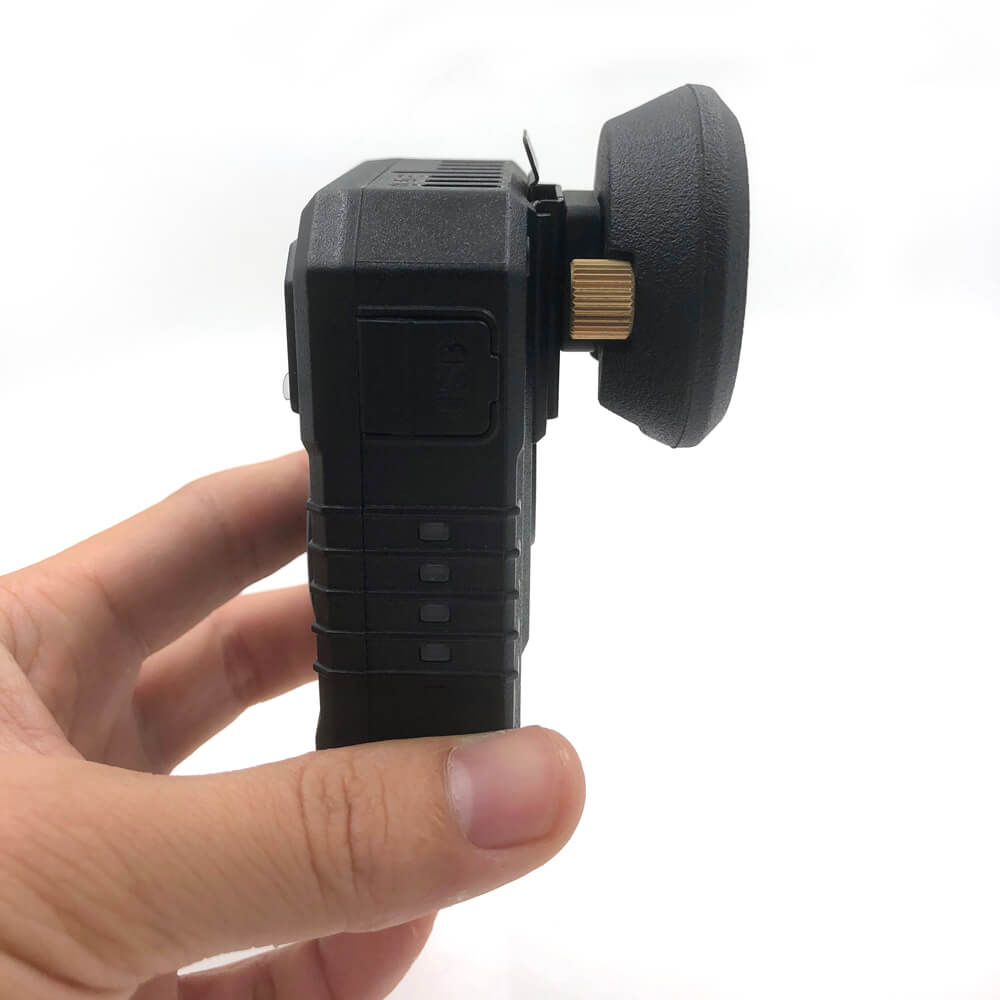
The Lock Clip provides a camera mounting point on clothing and uses a metal pin that can mark the fabric.
View Mount Details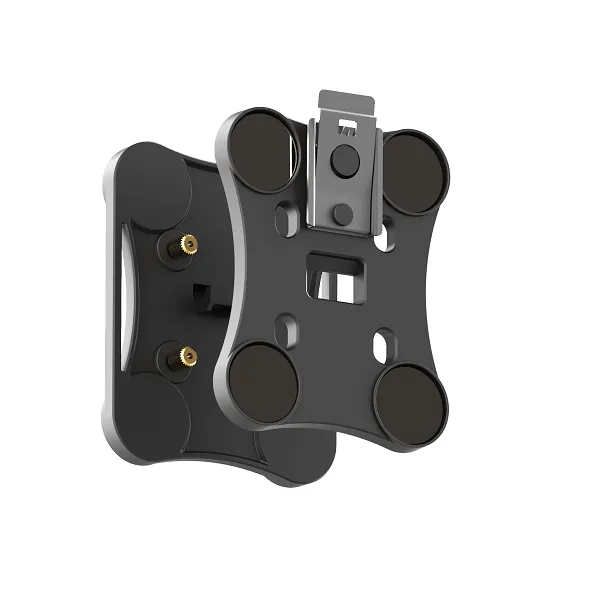
MG01 uses eight N35 magnets and a lock mechanism to provide a clothing-mounted attachment for a compatible camera.
View Mount DetailsShare your camera model and a description of the uniform or vest. We can review the mounting interface, fabric and wearing position together before agreeing the accessories for your order.
Discuss Your Wearing SetupDocking stations
Plan charging and video backup in the same office routine. Match the station to your camera connectors, number of officers and computer or server storage.
Plan Your Docking Setup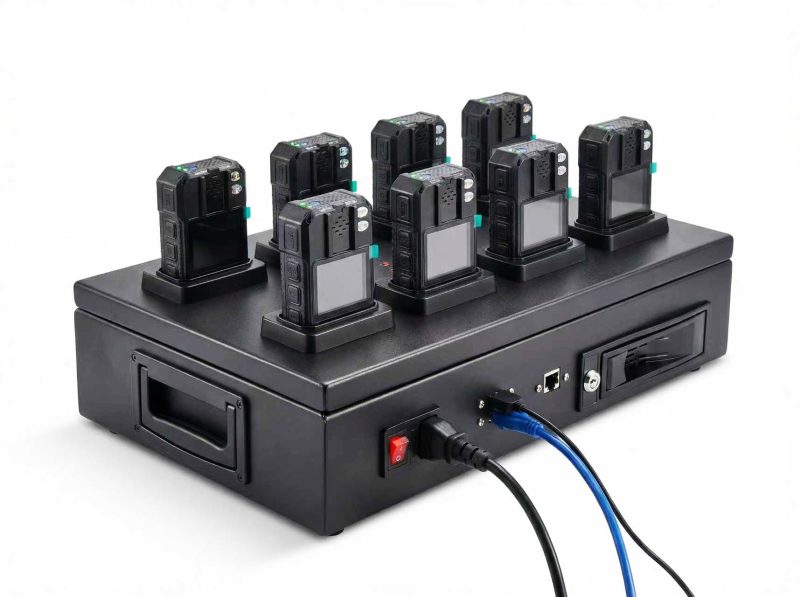
DEMS & CMSV
DEMS supports collected evidence workflows. CMSV supports live operations with compatible connected cameras. Both are available for OEM projects.
Collected evidence
Collect, organize and review recordings after a shift.
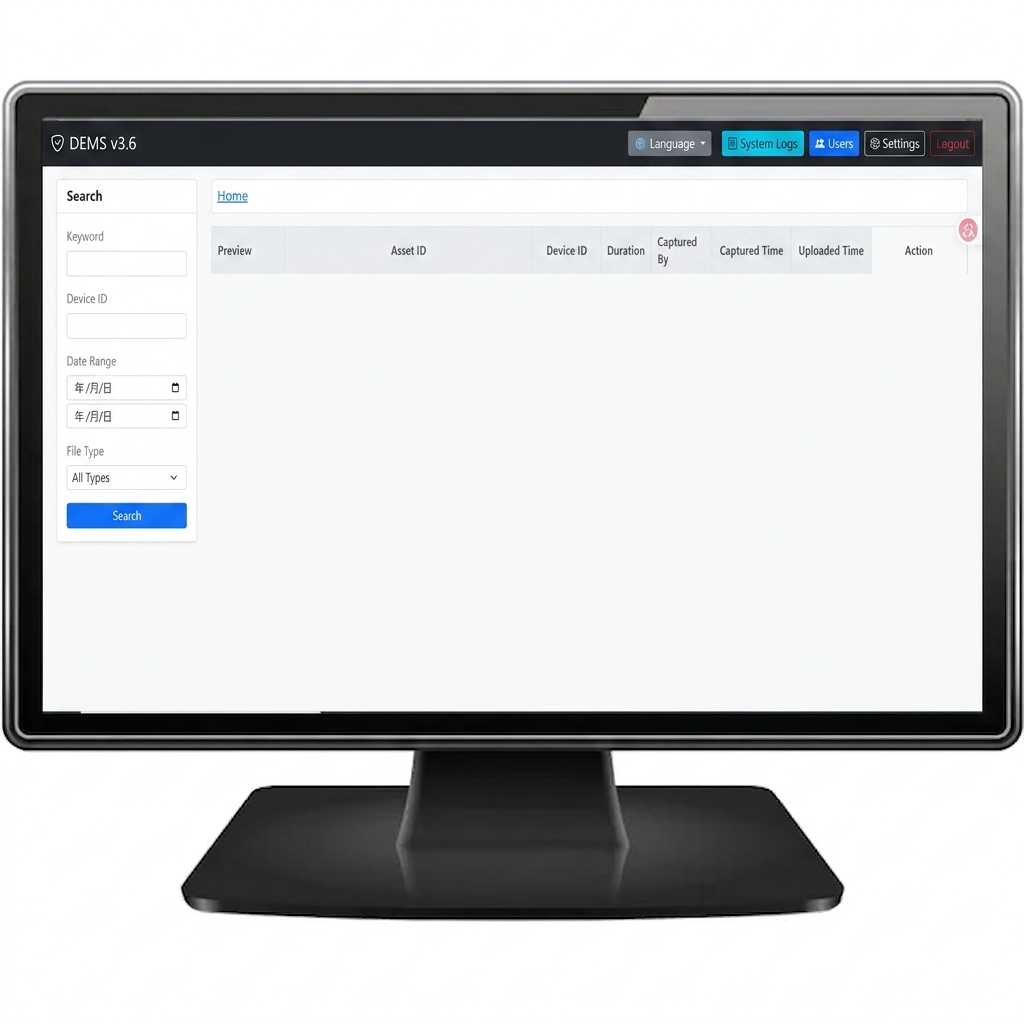
DEMS Collection gathers camera videos, photos and logs, links cameras to users and provides date or keyword searches.
DEMS Server/Client collects data from multiple docking-station clients and organizes server-held evidence with user and group permissions.
DEMS Web provides browser access to camera evidence and works with DS02A for automatic recording collection and upload.
Connected operations
Bring live video, location and communication into your workflow.
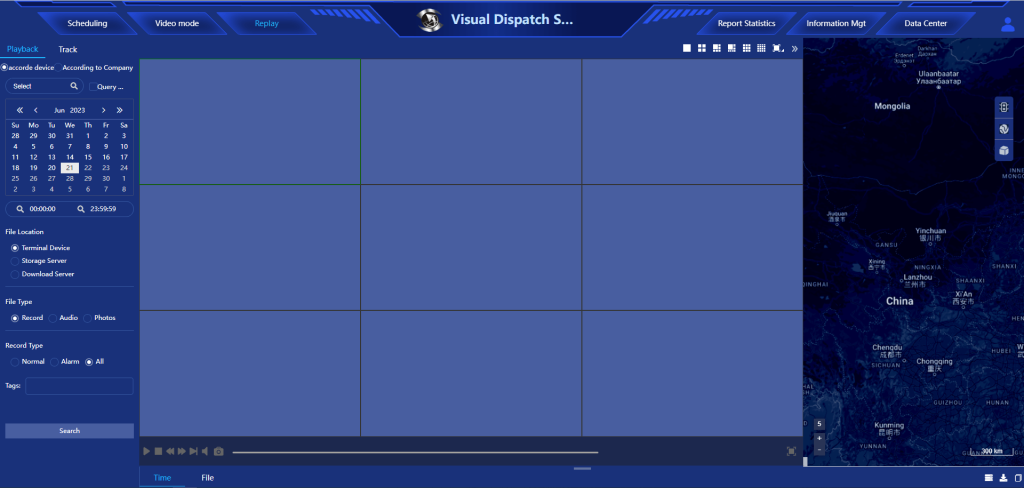
CMSV combines live video, GPS tracking and intercom functions with video upload and management for supported camera deployments.
Match hosting, licensing, camera firmware and network services to the deployment. S3 is a local-recording camera; connected CMSV functions require a supported connected model.
CMSV Product DetailsSoftware OEM
OEM options are available across the DEMS editions and CMSV. Share your branding, software and deployment requirements so we can agree the customization scope, licensing and support responsibilities.
Review the actual camera
Use the current model details and datasheet to prepare your sample checks. The supplied configuration and project terms are confirmed in the quotation.
Local recording & on-camera review
A local-recording 4K body camera with dual microphones, a front recording button and on-device playback.
Connected configuration / compatibility review
A 4K LTE recorder with dual-band Wi-Fi 6, Bluetooth 5.4 and a large front recording control.
S7+ regional and carrier compatibility must be reviewed for your configuration. Software and integrations are reviewed separately.
S7+ Specifications (PDF)Team setup
Agree the sample configuration and terms first. Record the settings, observations and open questions before approving a team order.
Check the proposed attachment on your actual uniform, vest or clothing. Review comfort, stability and camera view during the movements your work requires. Confirm accessory fit for the selected model.
Try starting and stopping recording from the wearing position. Review the indicators and how an operator confirms the recording state in the intended working conditions.
Record resolution, frame rate, screen use and network settings for each evaluation. Measure recording duration and plan charging or handover around observed results rather than an assumed full-shift runtime.
Test transferring and opening files on the intended computer or separately reviewed setup. Confirm file naming, timestamps, storage location and the handover procedure with a sample recording.
Define who may record, transfer, view, retain or delete files in your organizational process. Review how the proposed equipment supports that process; no access-control software is implied.
Have the responsible people review recording notices, audio capture, permitted locations, retention and access procedures for your application. Your policies and applicable requirements need human review; camera selection does not establish legal compliance.
From requirements to a team order
Share team size, locations, wearing method, recording needs and the proposed file-handling workflow.
Review camera, accessories, settings and compatibility. Confirm open requirements, sample terms and the quotation scope.
Evaluate the agreed sample with your checklist. Record observations, requested changes and approval of the exact configuration.
Agree the order, inspection criteria, schedule, delivery arrangements and support responsibilities for the approved version.
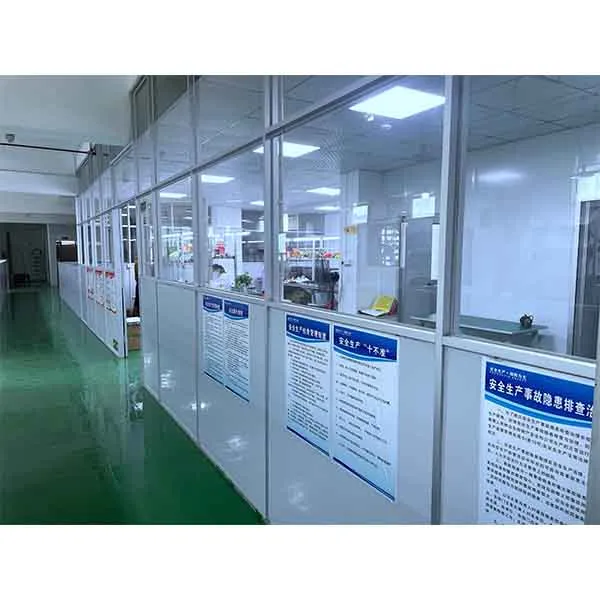
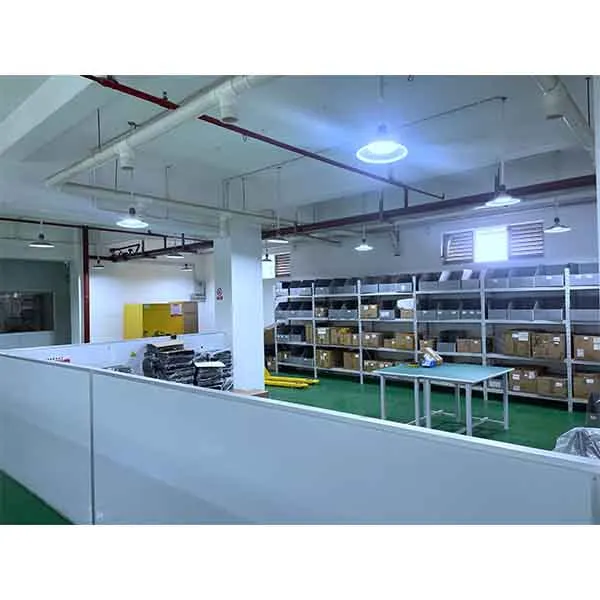
Our factory / Shenzhen, China
SPIKECAM has manufactured body cameras since 2012, with its own Shenzhen factory and hardware and firmware engineering. Discuss the model, requested configuration and open questions before agreeing the order.
Before ordering
Compare the recording-time figures and conditions near the top of this page. Evaluate your shift length, camera settings and storage with a sample; connected use has different battery requirements from local recording.
Yes, with a matched camera, docking station, DEMS edition and configured automatic collection workflow. Recordings can transfer to your selected computer or server storage while compatible cameras charge. The exact setup is agreed for your deployment.
Discuss BC02 Flat Alligator Clip, Lock Clip and Magnetic Mount options. Choose the version for the camera mounting interface and actual uniform fabric; the Lock Clip uses a metal pin that can mark clothing. Check sample fit before placing the team order.
MOQ is confirmed in the quotation for your model and configuration. Share the sample quantity and expected team order; no minimum is assumed here.
Discuss a sample evaluation before ordering. Availability, configuration, charges, shipping and any credit or refund terms require confirmation in the quotation.
Timing is confirmed in the quotation after configuration, availability, requested changes and approval stages are reviewed. Production, dispatch and transit are separate parts of the plan; no fixed delivery date is stated here.
Compatibility is unconfirmed until the intended carrier, regional hardware revision, bands, SIM and activation requirements are reviewed. Share the network and location requirements before selecting a connected configuration.
Yes. Discuss DS02, DS02A or DS04 with the selected DEMS edition, or CMSV for supported connected cameras. Camera fit, versions, licensing and the supplied configuration are agreed in the quotation.
Yes. OEM options are available for DEMS Collection, DEMS Server/Client, DEMS Web and CMSV. Share your requirements so the customization scope, license terms and support responsibilities can be agreed.
Support responsibilities, warranty terms and any repair or return process need written confirmation for your order. Include those requirements in the quotation discussion.
Your team camera requirements
Tell us how many officers need cameras, how long they record and what uniforms they wear. Include your computer or server backup needs, DEMS or CMSV and software OEM requirements so we can quote a matched setup.
Sales Manager & Co-Founder
SPIKECAM LIMITED